 AIVIDEOSUGC
AI Product Photo Generator: Listings and Scenes
This AI product photo generator puts your product in a new background, a white catalog shot, or a lifestyle scene. Check it against the item you ship, then post it.
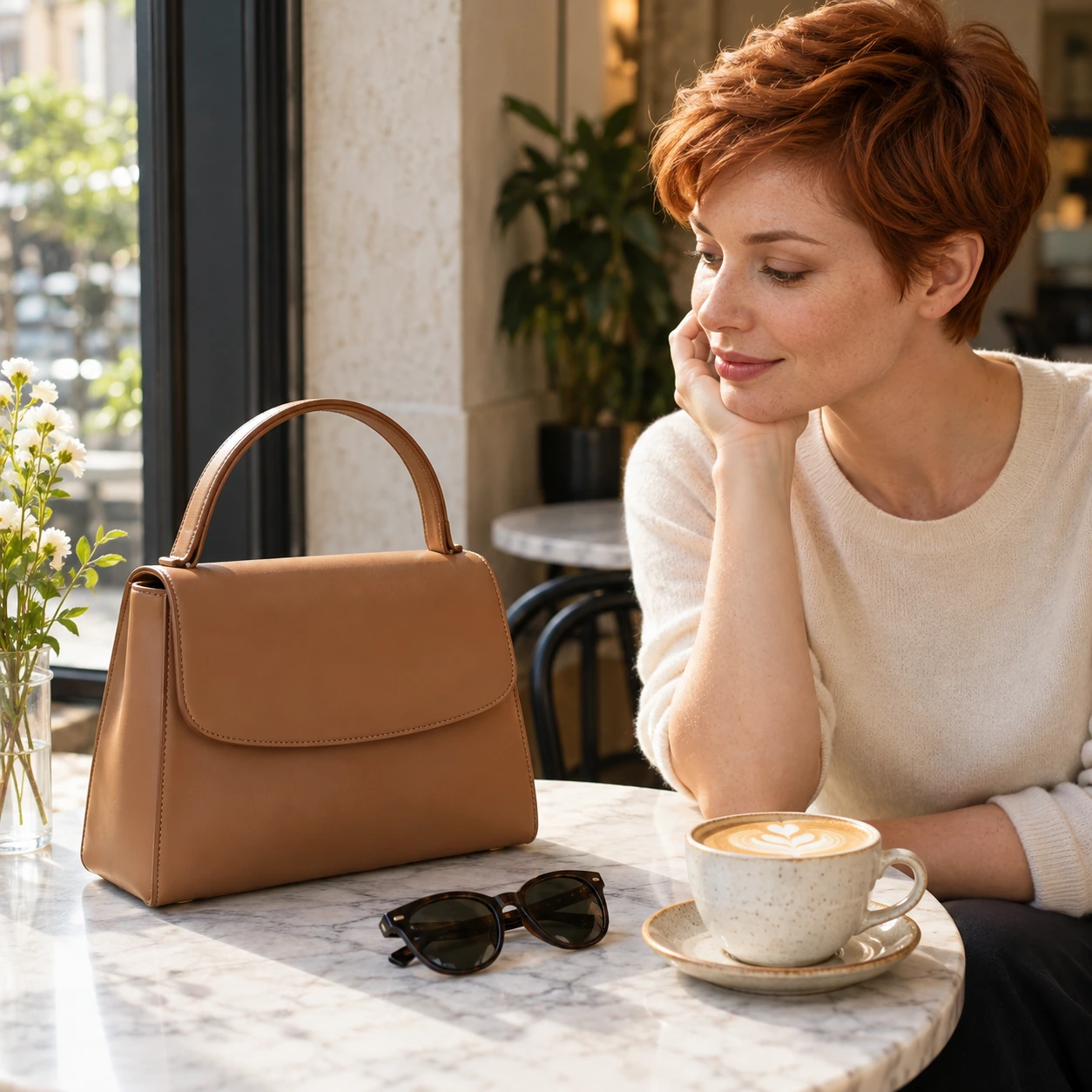
A Fresh Setting for Your Product
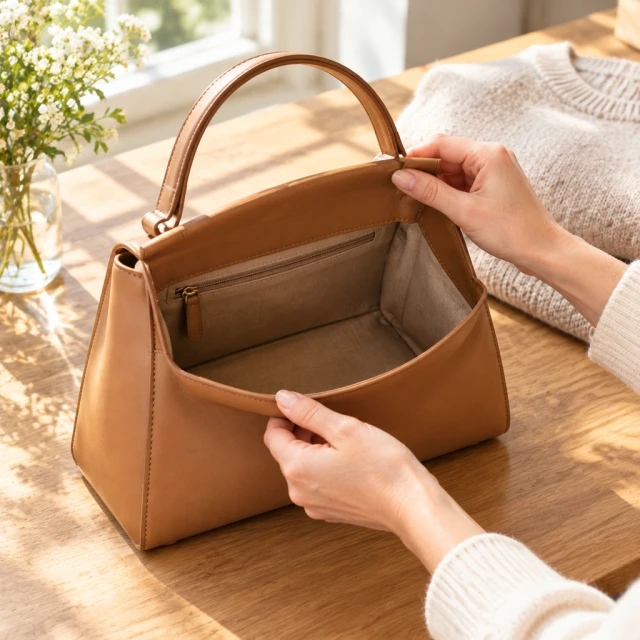
Your product can sit in new light without a second shoot. The bag in this photo sits beside a scarf on the entry table. Ask for late-afternoon light, a plain room, or an outdoor setup. If the shape changes, throw that file out.
Begin with one sharp photo. Name the surface and the light, then compare the result with the item you ship. Open the photo tools once the source photo is sharp.
Why Shops Switch to This Photo Generator
Lower spend. A product photo is 24 credits. Starter is $24.50 a month for 200 credits, Pro is $35 for 300, and Premium is $63 for 600. See plans. You pay credits per image instead of booking a studio for every new scene.
Less waiting. You skip the back and forth of hiring a photographer. The next scene does not wait on a calendar. You can have a clean photo in minutes.
Several shots from one file. Make the product-page image, a social scene, and a close view from the same upload. Each of those is its own image.
No model to book, and no props to rent. Build the scene around the product you already photographed. When someone should wear it, use model photos instead of hiring a model.
The person who packs orders at night can still make the next scene after the bench is clear. The tool is there whenever the shop is quiet.
A second scene to compare. Make another background for the same product and keep the one that fits the post. The item in the frame should stay the item you ship.
How to Make a Product Photo in 3 Simple Steps
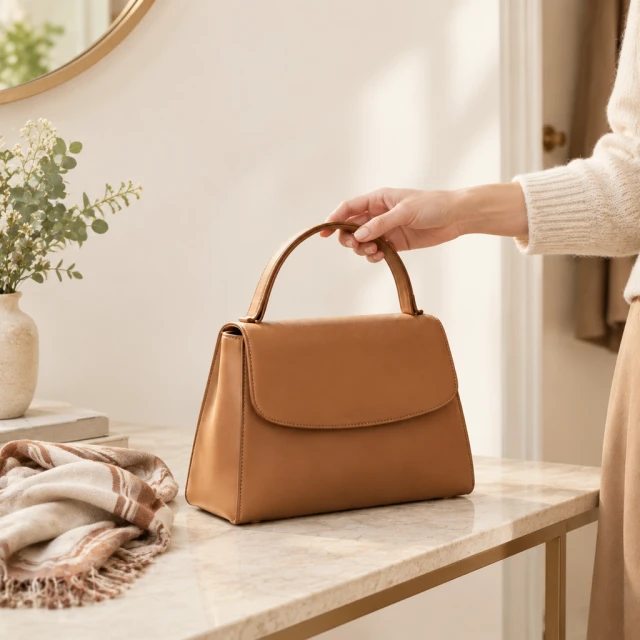
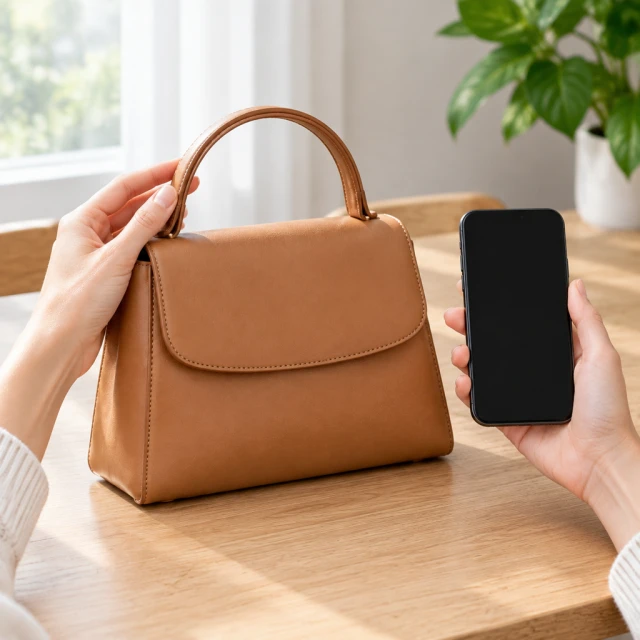
Upload Your Product Photo. A phone picture on a pale surface is enough, like the bag standing upright in this frame. If you would rather not upload yet, write one sentence about a clean surface and soft light.
Describe Your Scene. Ask for the product alone on white when you need the first image on the product page. Ask for a hand lifting it only when you want a use shot. Say the look in plain words.
Download and Post. When the product looks right, download the square file. If an edge or a piece of hardware looks wrong, write a shorter note and run it again. That still can later be the first frame of a clip.
Scenes This Photo Generator Can Make
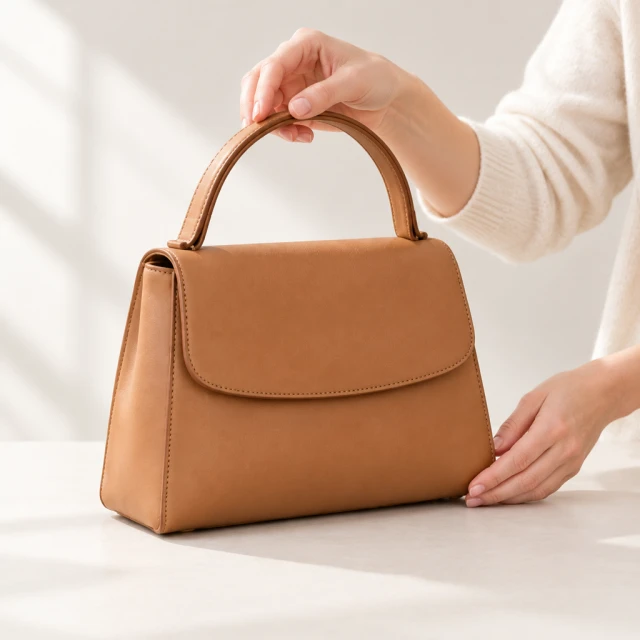
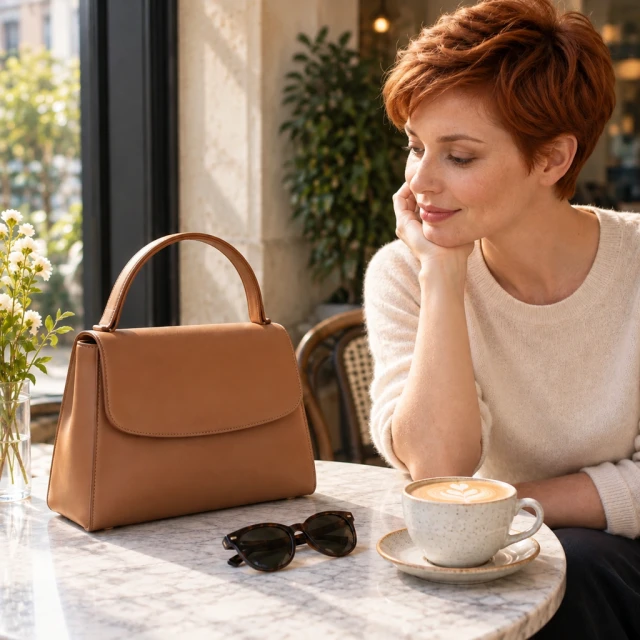
You can ask for a cafe table, a window, a plain white field, or a simple indoor room. The bag in this photo is the cafe version. The entry table, the cafe, and the pale studio surface show the range.
For the first marketplace image, make white background product photos from the same photo. Use the background changer when only the backdrop should change, or lifestyle photos when the product should sit in a room.
More Tools From the Same Product Photo
A creator-style clip from the same photo: AI UGC video ads.
The product in use, as a clip: AI product videos.
An avatar who speaks one feature: AI spokesperson video.
A face from the library when someone should hold the product: AI actors.
A clip that starts from the product page: URL to video.
How Shops Use These Product Photos
One upload covers the listing and the ad, so you skip a second shoot.
A shop keeps the product large in every frame, then sets that still beside the real item on the shelf.
Someone who has never opened a photo editor can still make the next scene. The photo only has to show the real product.
A shop approves the still first. Only then does it ask for a clip where a hand holds that same item.
A shop writes today's price beside the photo, so the caption matches the tag on the shelf.
A shop keeps the product on the same table and records a second line for the next country it ships to.
A small team makes the next set of stills on a monthly plan instead of booking another half day.
A shop builds launch photos from pictures it already has and talks about the shape, the color, and the hardware.
A shop builds the seasonal set from pictures taken in daylight. They ask for a new table only when that item is the one in the box.
You can write the caption yourself and still download a square photo. You do not open another app to post it.
A clip can start from the product page once the photo matches the item you ship. Read the spoken line before anyone posts it.
What One Product Photo Can Cover
One photo can cover the product page and a paid post, without a second shoot. The bag in this picture, on a sunlit desk beside a folded sweater, can do both jobs. The item in the file still has to match the item you ship.
A new product page wants more than one picture. A seasonal post wants a new setting. A supplier photo may not match the rest of the store. When a buyer must see stitching or hardware, a close-up you photographed is still the safer file.
Where Should Each Product Photo Go?
A marketplace hero and a social post can come from the same photo, once you pick the destination. A marketplace hero has stricter rules than a social post. The cafe scene in this photo is the social version.
A first image usually wants a clean white field and nothing extra in the frame. Later photos can show the product in a box, in use, or as a detail. On your own store, match the backdrop you already use so the row stays tidy. A square file fits a product page and a social crop, and you can also pick 9:16, 16:9, 4:3, or 3:4.
How Do I Check a Photo Before I Publish It?
Put the image beside the real product in your hand. Compare color, shape, hardware, and how many pieces there are. The bag in this photo is the one you check.
Zoom in on the label, the hardware, and the edges. If something is wrong, run it again from a sharper photo or a clearer sentence instead of hiding it with a caption. Use your own label and your own logo. The picture should say only what is really on the product. The Content Policy says what can be uploaded. Uploads and results stay in your account and are not shown publicly.
A Product Photo You Can Publish
One daylight photo, plus a plain sentence, gives you the next scene to post. Compare it with the real product before it goes on the product page.
White images and room scenes are separate jobs. A finished image can run in ads and on your store, and it does not carry a watermark.