 AIVideosUGC
How to Use Unboxing Videos for Product Launches
Unboxing videos for product launches can present a planned package-opening sequence, from a closed box to a product reveal. Here's how to plan a few short clips around a launch, from the first teaser to the weeks after.
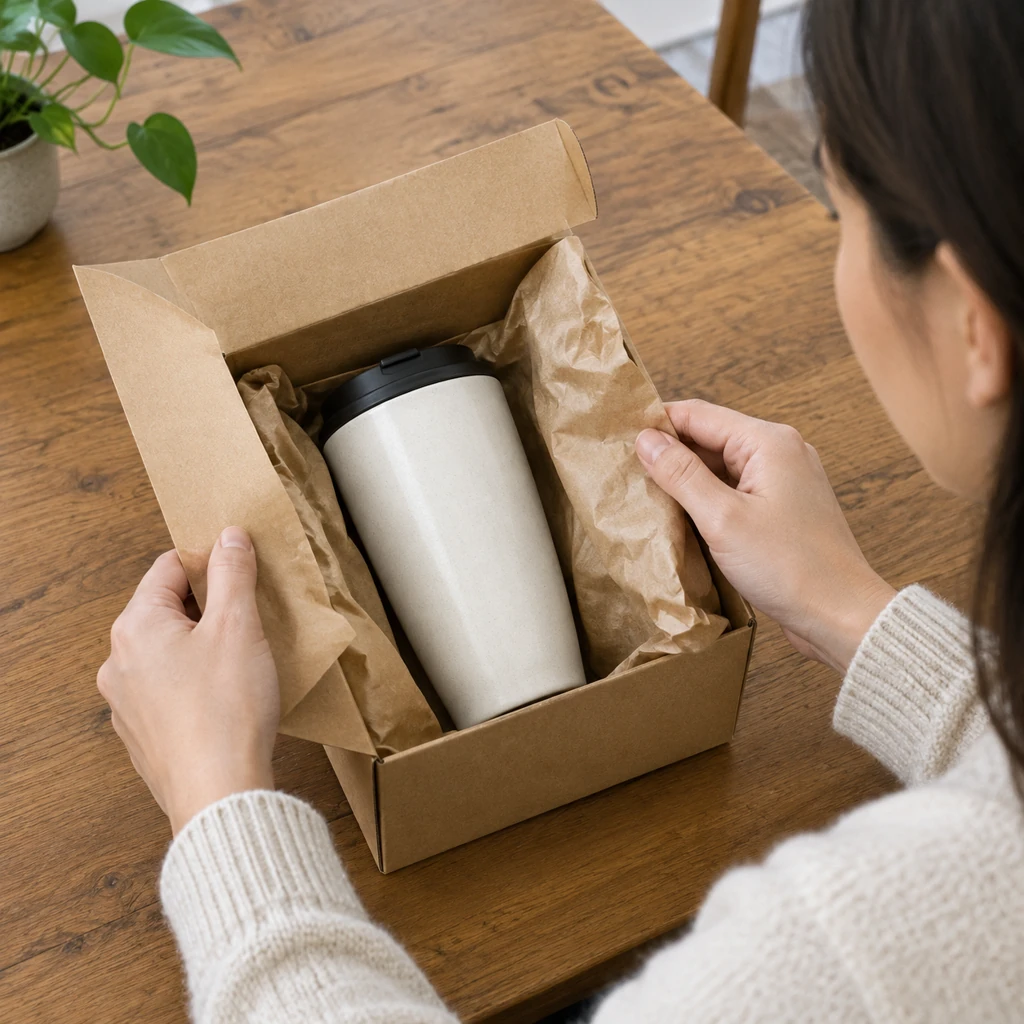
Why unboxing suits a launch
When a product is new, nobody has seen it in person yet. An unboxing video answers a shopper's first questions: what does the box look like, what's inside, and how big is it in someone's hands? A short creator video can carry the same first-look moment into an ad.
It also gives you something to post at each stage. You can tease the box before launch, show the full reveal on the day, and follow up with a closer look once orders start shipping. Three short clips with distinct purposes are easier to plan, and easier to reuse, than one long video.
The format fits many kinds of products, from earbuds and phone accessories to candles, skincare sets, and gift boxes. If someone would open it with a little anticipation, it's worth showing.
Get your product photo ready
Start with a clear photo of the product, ideally sitting in or next to its real packaging. Shoot in daylight on a plain surface, with the logo and any printed details facing the camera.
If your packaging isn't final yet, wait for it, or describe a plain unbranded box instead of guessing at the design. A video showing packaging that buyers won't receive sets the wrong expectation from the first day.
Count what goes in the box, too. If the kit ships with a cable, a pouch, and a card, those are the items the video should show coming out.
Plan three clips around launch day
The teaser, a week or two before: a 6-second clip of hands lifting the lid or pulling the tab, ending before the product is fully visible. Post it on TikTok or Reels with your launch date added in CapCut.
The reveal, on launch day: a 10-, 15- or 30-second clip of the full unboxing, from closed box to product in hand. This is the one for your product page and your first ads.
The closer look, after launch: a 10-second clip that stays on one detail, like the weave of a fabric, a magnetic lid snapping shut, or the product set up on a desk. Use it to answer the questions that show up in your comments. More planning ideas are on our page for a new product launch.
Describe each unboxing in one sentence
Say whose hands, what surface, what happens, and what the light is like. A few examples follow.
Wireless earbuds: "Hands open a matte black box on a wooden desk and lift out a pair of white earbuds in their case, close-up, soft daylight." Candle: "Someone folds back tissue paper in a gift box and lifts out a glass candle, cozy living room, warm lamp light." Ceramic tea set: "Hands unwrap a teapot and two cups from a kraft paper box on a kitchen table, bright morning light."
Pick 9:16 for TikTok, Reels, and Shorts, 1:1 for feed posts, and 16:9 for your product page or a regular YouTube video. You make one clip per request, and each shows its credit cost up front. The ad sizes guide explains each shape.
Add the launch details yourself
Download each clip and add the words in CapCut, Canva, or Ads Manager: the launch date on the teaser, "Available now" and the price on the reveal, and any launch code on your ads. Put captions and music on in TikTok, CapCut, or the editing app you already use. That way every date and number is exactly as you typed it.
Post the teaser to your social accounts first, then switch to the reveal as soon as the product page is live. Save the closer look for the following week, when early buyers start asking questions.
Keep the teaser text to a few words, such as the date and "Coming soon," so it reads at a glance while the clip plays.
Keep using the reveal after launch week
A good reveal clip stays useful long after launch day. Pin it to the top of your TikTok or Instagram profile, add it to the product page gallery, and use a still from it as the header image in your launch email.
When you restock or release a new color, you don't have to start from scratch. Upload a photo of the new version, reuse the description you wrote last time, and change only the color or the setting.