 AIVideosUGC
How to Make an Amazon White Background Photo for Your Main Image
Your main image is the first thing shoppers see in search results. Here's what Amazon expects from it and how to get a clean white background version from a phone photo.
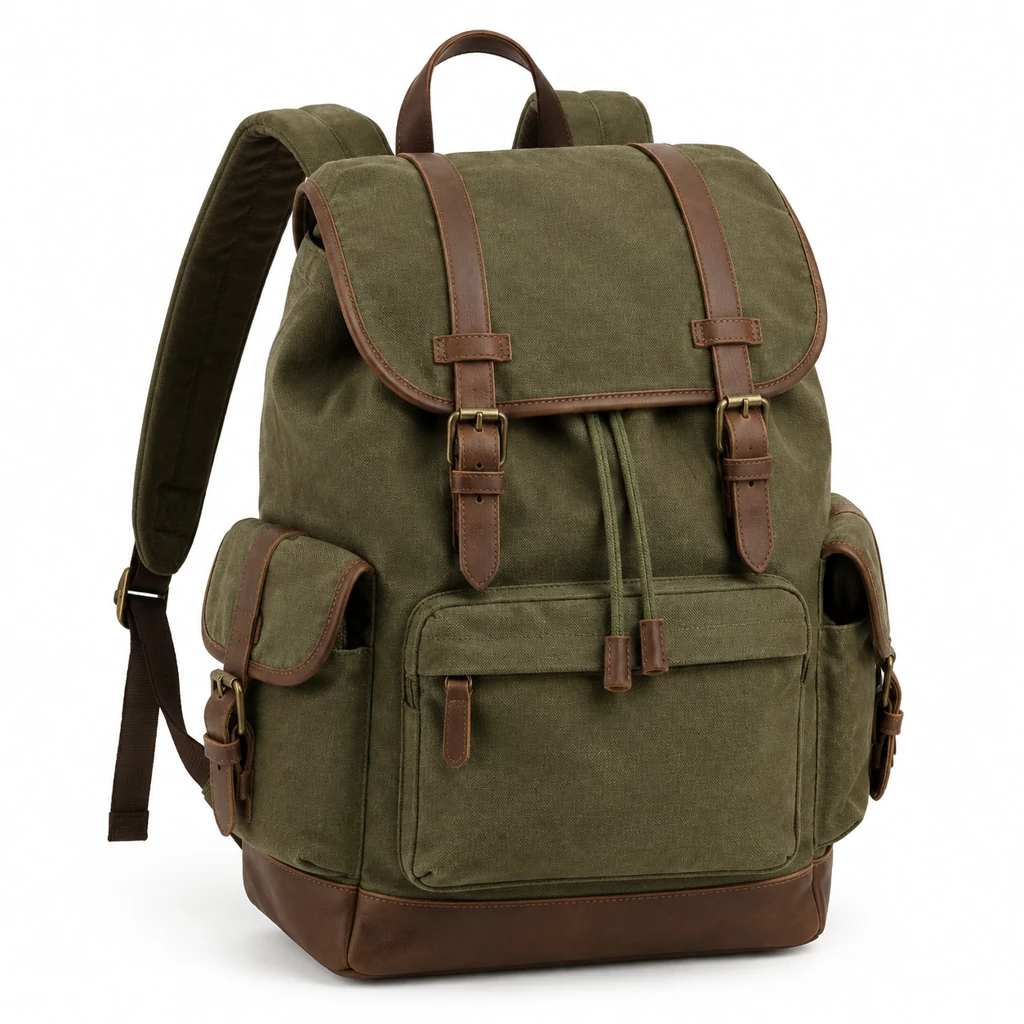
What Amazon expects from a main image
Amazon treats the main image differently from the rest of your gallery. It appears in search results right next to other sellers' listings, so the rules aim to keep every main image clean and easy to compare.
These are the core rules in Amazon Seller Central's product image guide. The background is pure white (RGB 255, 255, 255). The product fills 85% or more of the frame. Only the item being sold appears, with no props or accessories that don't come with it. Nothing is added on top: no text, logos, badges, borders, or watermarks. The image shows the actual product, not a drawing, mockup, or placeholder.
Some categories, such as clothing and jewelry, have extra rules about models and mannequins.
Start with a photo that shows everything
Your source photo doesn't need a white background. It needs the whole product, in focus, with even light. Shoot near a window on a plain surface, hold the phone at the product's height, and keep a little space around every edge. Our guide to taking a product photo that works covers the setup.
Think about what the buyer finds in the box. If you sell a stainless steel water bottle that ships with two lids, both lids belong in the photo. If the carry strap is sold separately, leave it out. For a fuller gallery, plan front, side and back views so shoppers can inspect the whole item. Use the Every Angle template when you have a real photo of each side.
Make the white background version
In AIVideosUGC, open White Background Photos and upload your photo. Pick a template, or describe the result in one plain sentence, such as "the bottle and both lids on a pure white background, front view, soft even light."
The image comes out square by default, which suits the main image slot. The cost in credits shows up before you confirm. If something looks off, like a lid sitting at a strange angle, adjust your sentence and make another one.
Check it the way a picky buyer would
Open the image at full size and take your time. Use the color picker in any image editor on a few spots near the corners and edges. Each spot should read pure white, with no gray haze or faint tint.
Then put the real product on your desk next to the screen. The shape, color, finish, and number of parts should match. Labels deserve extra attention, because AI can blur or change small lettering. If the label text isn't right, try again with a sharper source photo where every word is easy to read.
Last, look at how big the product sits in the square. A small item surrounded by a wide white border looks tiny in search results, right beside listings that fill the frame.
Tricky products and how to handle them
White products. A white diffuser on a white background can lose its outline. Shoot the source photo with light coming from one side so the edges get soft shading, and mention "gentle side light" in your description.
Clear glass and plastic. A glass jar picks up whatever is behind it. Photograph it in front of a plain light wall rather than a cluttered room, so there's nothing odd showing through the glass.
Multipacks and sets. If the listing is a three-pack of soap bars, the main image should show exactly three bars, not two and not five. Count them in the result before you upload.
Soft goods. Pillows, bags, and plush toys look flat when they're slumped. Fluff and shape the item before you take the source photo, since the new image follows the shape it sees.
Use the rest of your image slots
The main image has the strictest rules. The images after it are where you show context, scale, and detail, and they often answer the questions that keep people from buying.
For the water bottle, a useful set could be the bottle tucked into a gym bag, the bottle in a hand to show its size, a close-up of the lid seal, and an image with three short feature callouts. Make the photos first, then add any words in Canva so the spelling is exactly right. A lifestyle product photo can fill the gallery slot that shows the bottle in use.
If you also sell on your own Shopify store, the same white background photo can lead your product page there, so shoppers who find you in both places see one consistent look.
Checklist
- Background reads pure white at every corner
- Product fills 85% or more of the square
- Only items included in the sale are shown
- No added text, badges, logos, or borders
- Shape, color, parts, and label match the real product