AIVideosUGC
Drop your product photo hereJPG, PNG or WebP · any clear photo works
Step 01
Add a product photo or link
Start with a clear product picture or a public product page that shows the item.
Use an AI video generator for ecommerce to turn a photo or product page into a short product clip. Choose a video type, set the frame and length, then describe the scene.
Plans from $24.50 a month. You see the credit cost before every job, and if a job fails its credits go back to your balance.
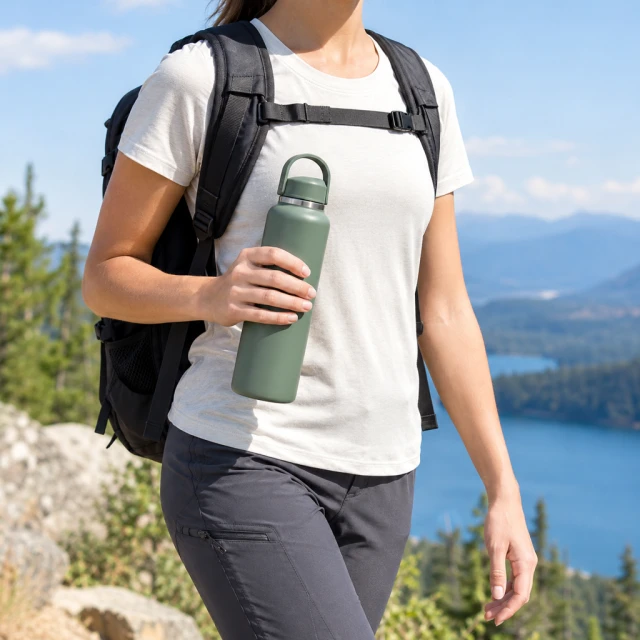
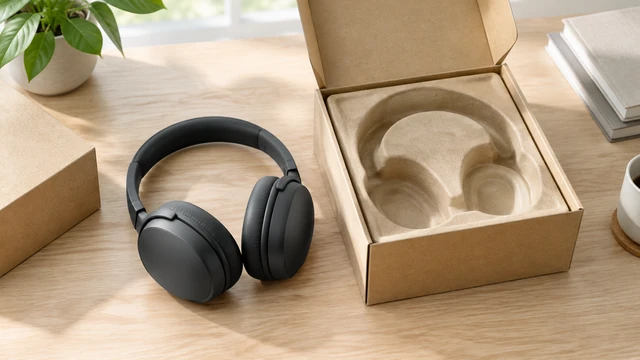
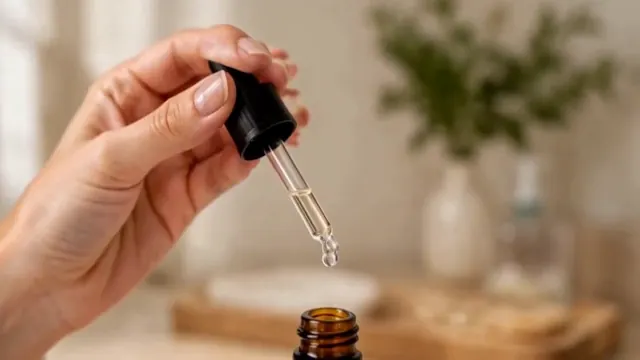
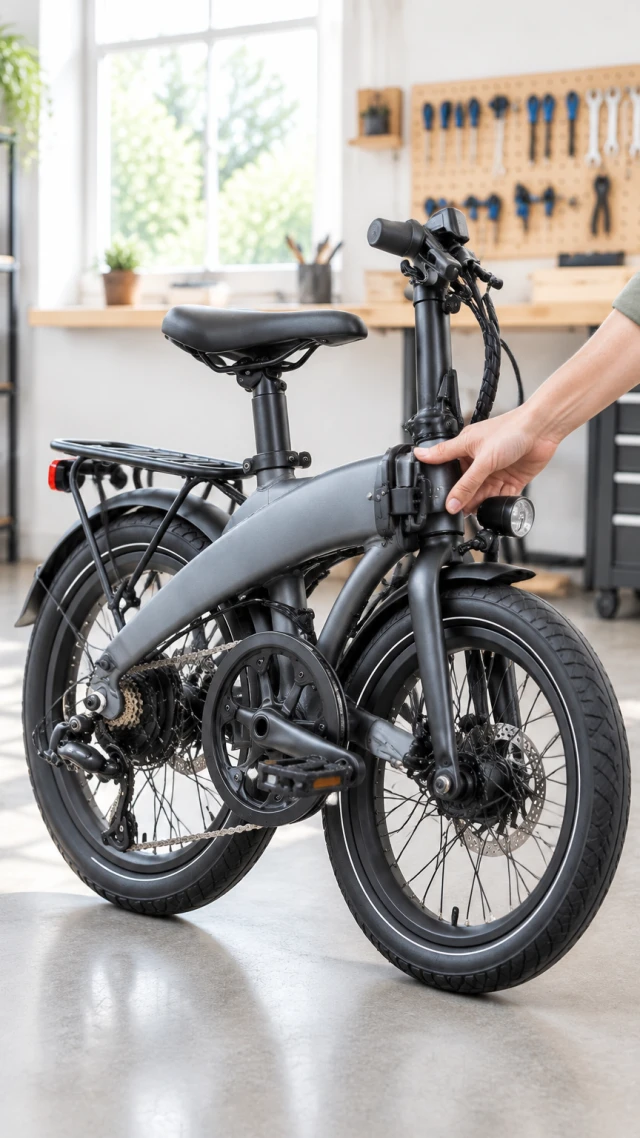
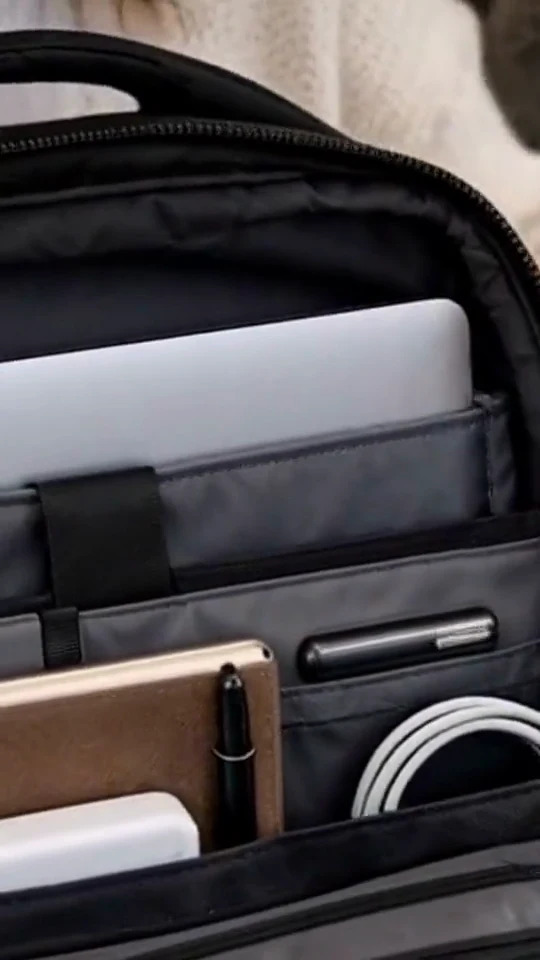
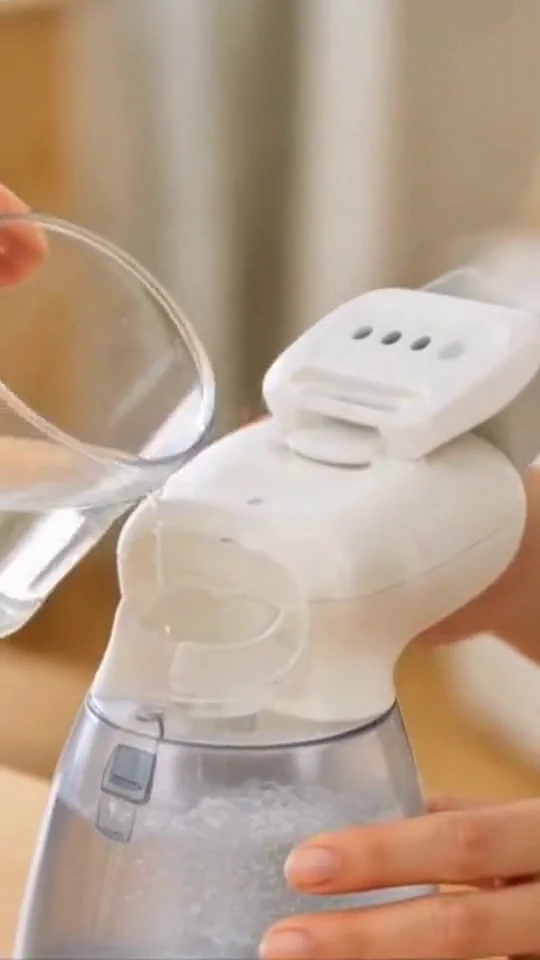
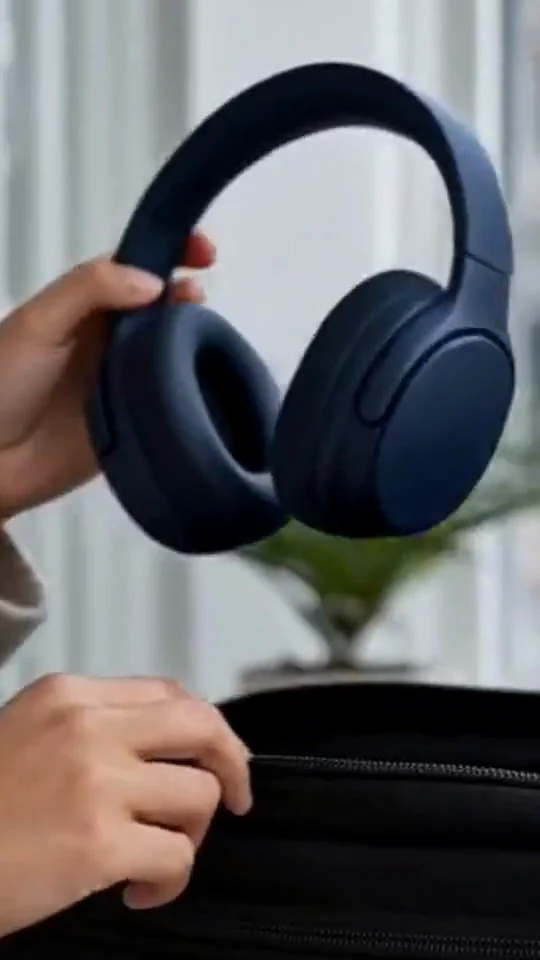
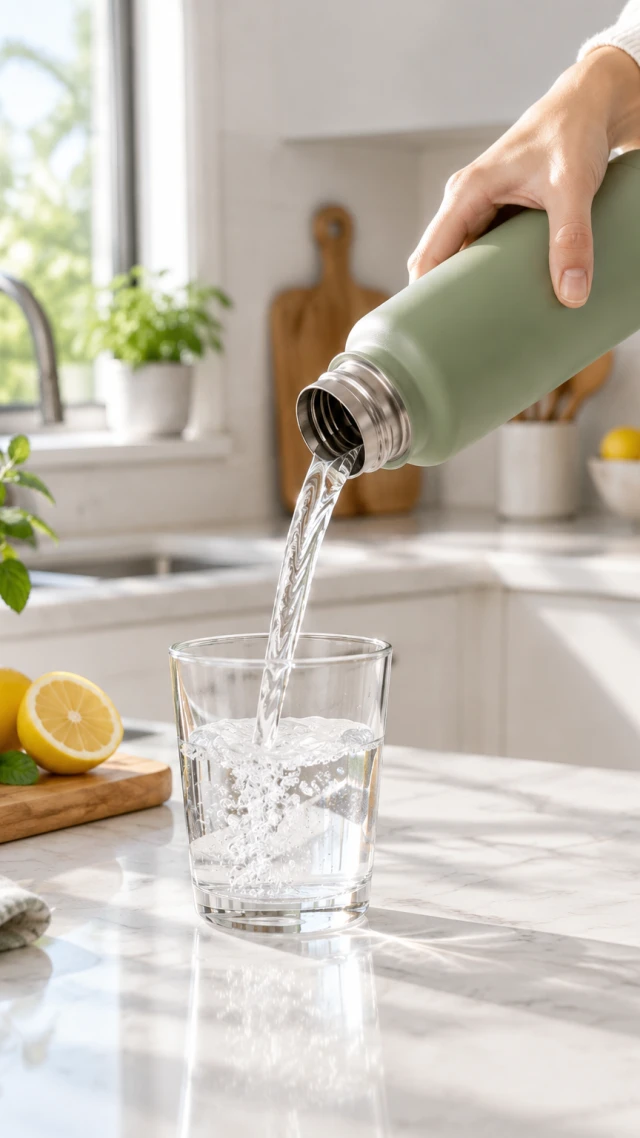
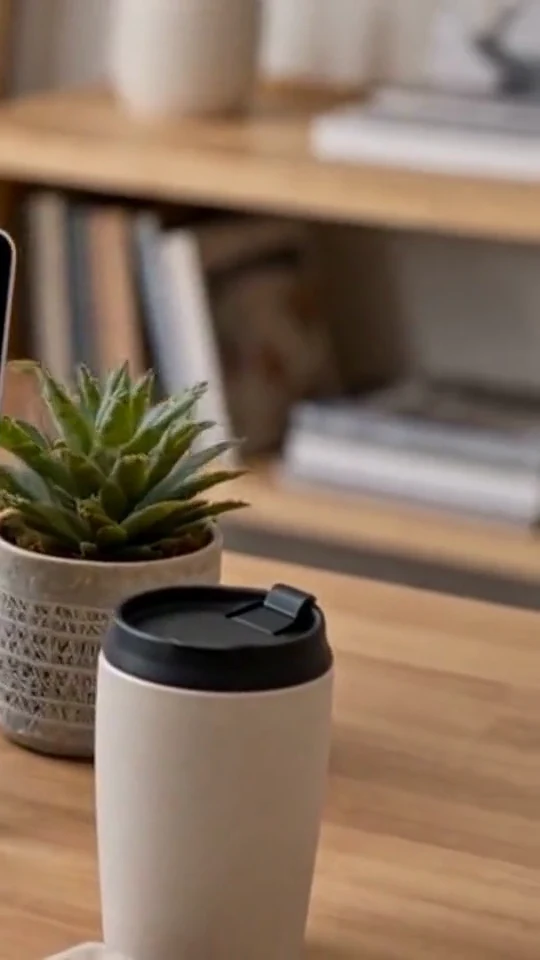
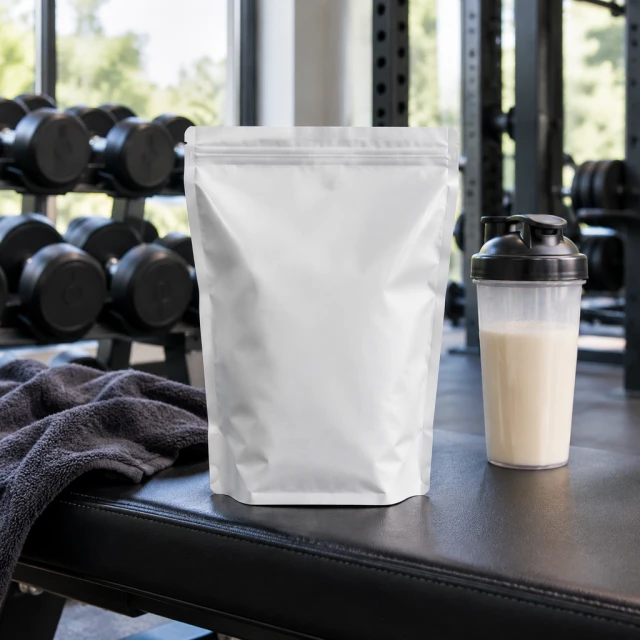
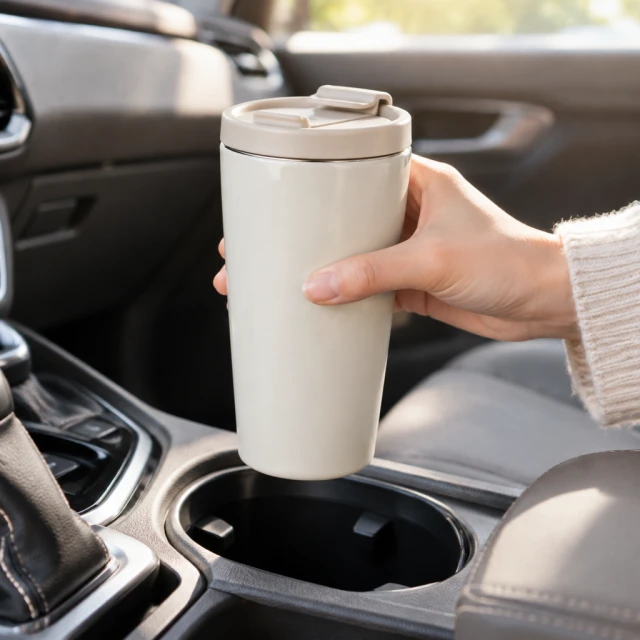
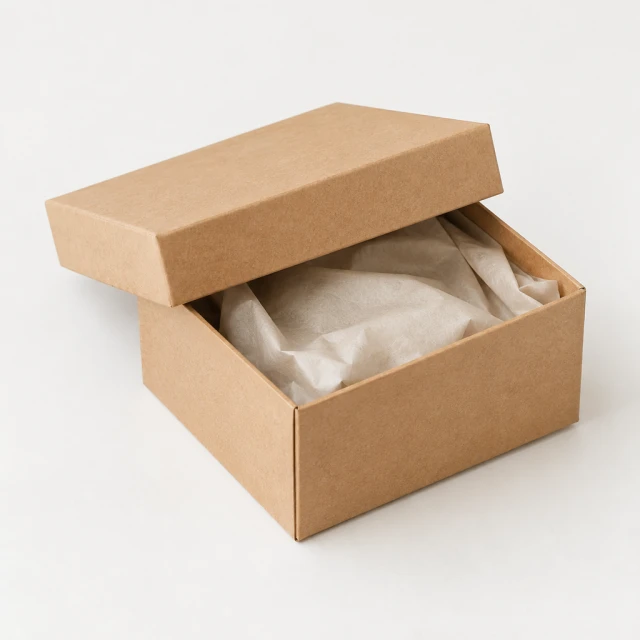
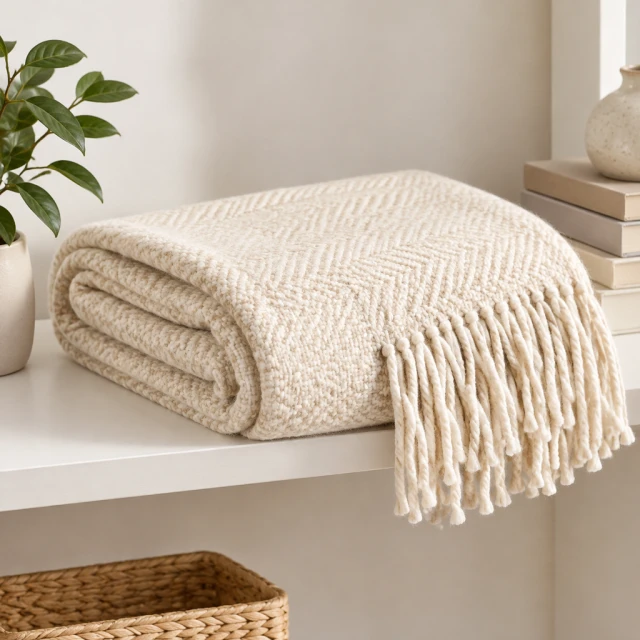
A demonstration can show one useful action. An unboxing can reveal what comes in the package. A creator-style ad can frame a quick product moment, while image-to-video adds movement to a still photo.
Start with a clear product picture or a public product page that shows the item.
Choose a product action, then pick a frame and length for the placement.

Save the version that fits the product and placement you selected.
Select the kind of product clip you want to make.
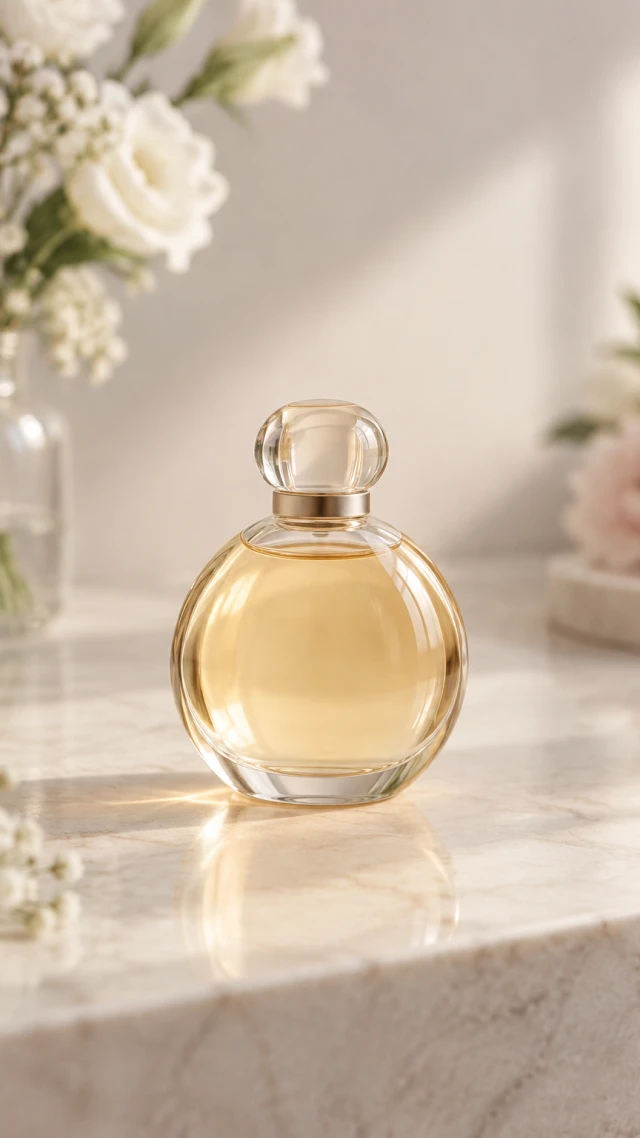
Use a 9:16 clip when the video will fill a vertical feed.
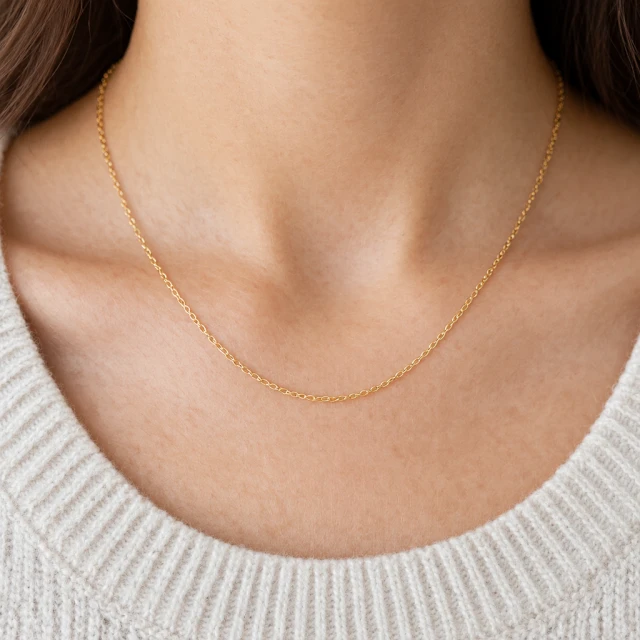
Show one movement or feature beside the product photos.
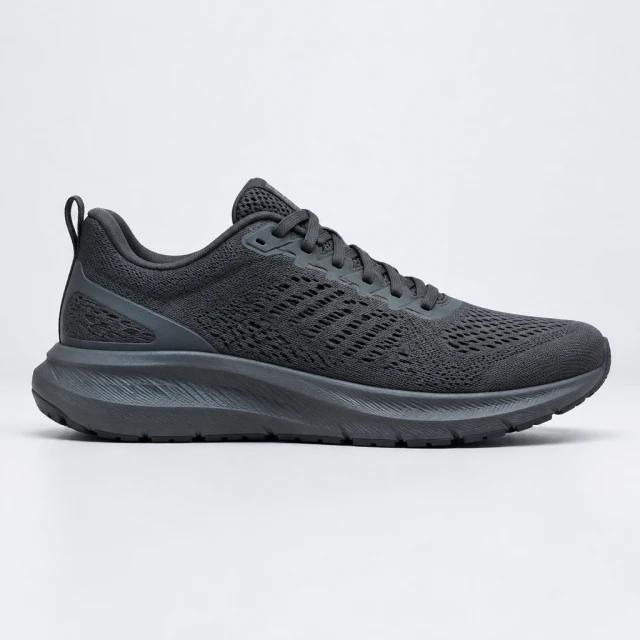
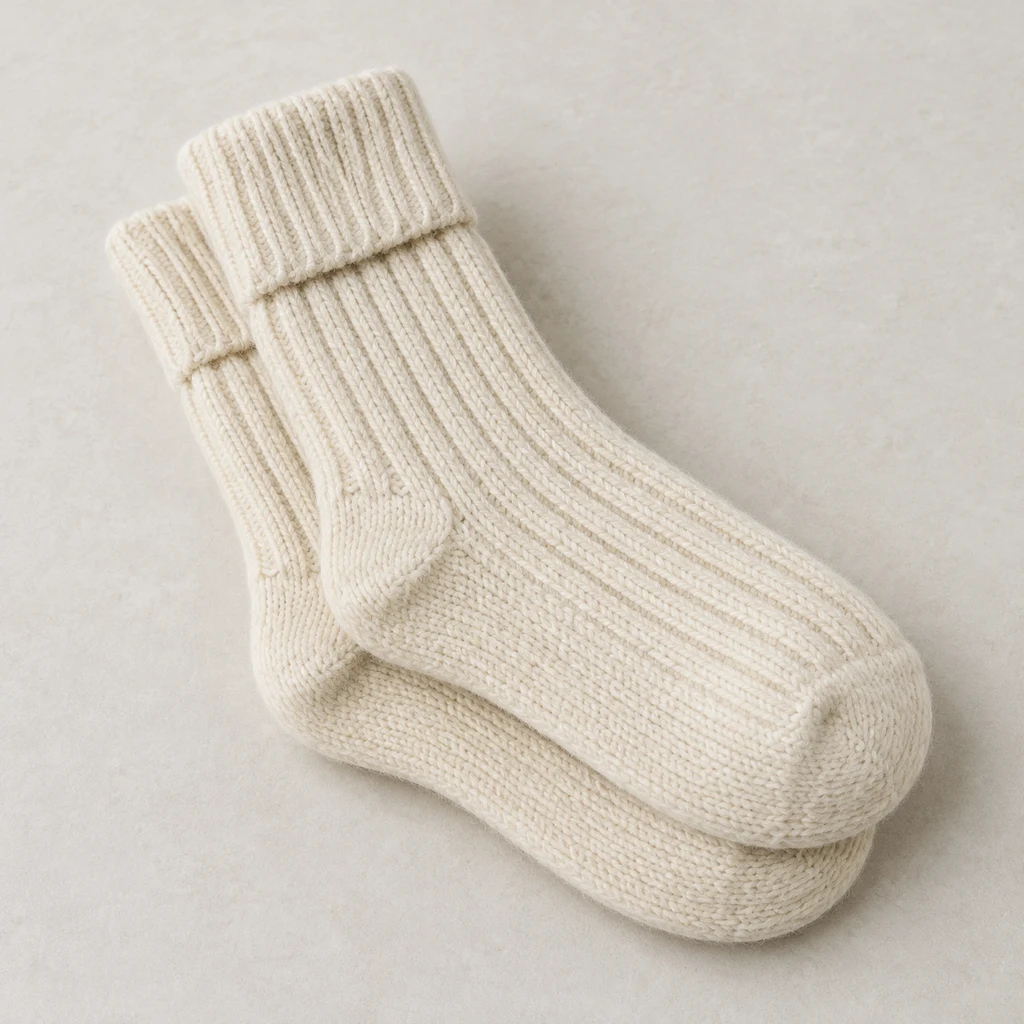
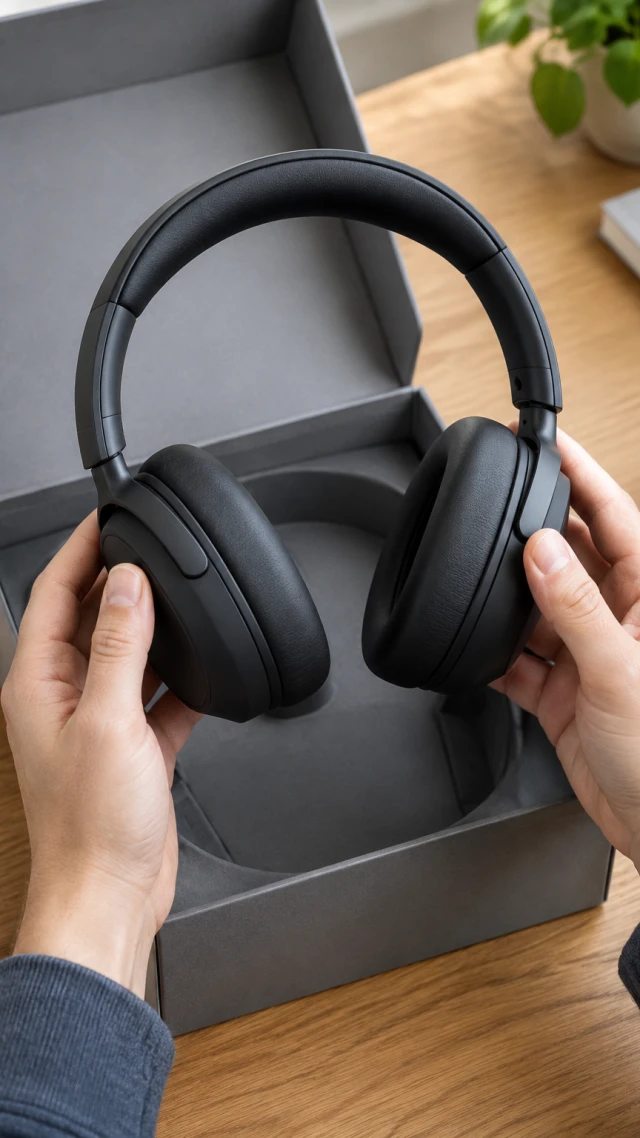
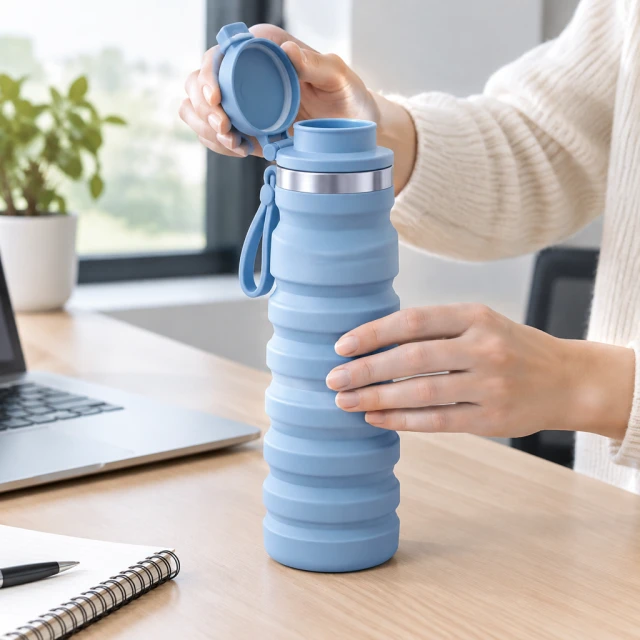
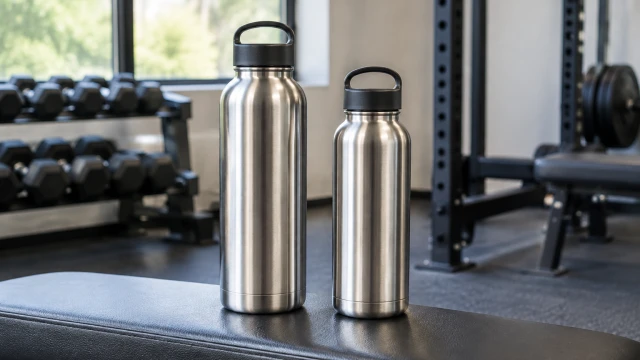
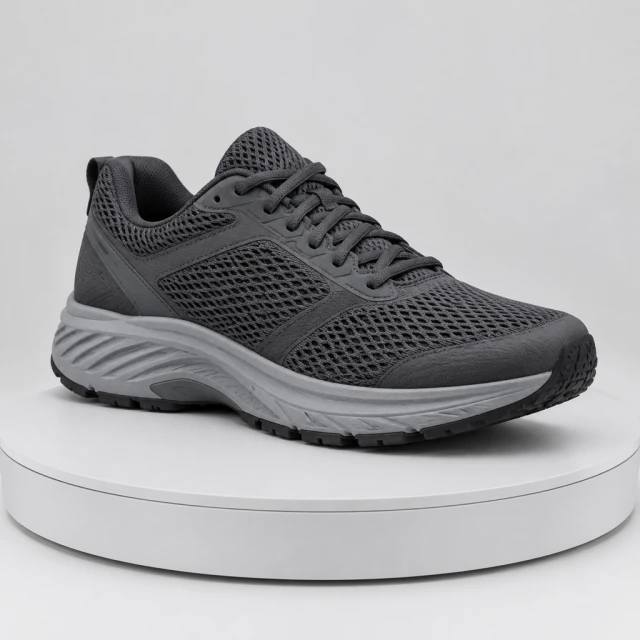
These details are added in your editor after download.
No, but it helps. With a photo, the video is built around your actual product. Without one, the result comes from your description alone, so it may not match your item exactly.
You can pick 6, 10, 15, or 30 seconds. Formats include 9:16 vertical, 1:1 square, and 16:9 wide, plus 3:4 and 4:3.
Add those after you download. Put prices, dates, and discount codes on in Canva, CapCut, or Ads Manager, and add captions and music in TikTok or CapCut. AI-generated text can come out misspelled, so it's safer to type it yourself.
The displayed cost depends on length: 6 seconds uses 24 credits, 10 uses 40, 15 uses 60, and 30 uses 120. The workspace currently exposes 6, 10, and 15 seconds.
Show the item clearly before it moves. Use one action that explains its purpose, and keep the label and important parts in view as the scene develops.
Upload a product photo and see the cost before you start.