Black Friday

Black Friday Ad Creatives You Can Prepare Weeks Ahead

Plan a Black Friday creative set around featured products and placements, then add the price, code, and end date after download.

Drop your product photo hereJPG, PNG or WebP · any clear photo works
Photo Your product shotScene Soft pink backdropSize Square
Make a social ad photo →See the cost before you start

Plans from $24.50 a month. You see the credit cost before every job, and if a job fails its credits go back to your balance.


Robot vacuum on a dark wood floor under dramatic low light
Photo
Ceramic mug filling the frame on a pure white background
Photo
Muted olive technical running shoe with a dark sole on a round plinth under a focused spotlight.
Photo
Desk lamp just switched on in a dark room, a warm pool of light on the desk
Photo
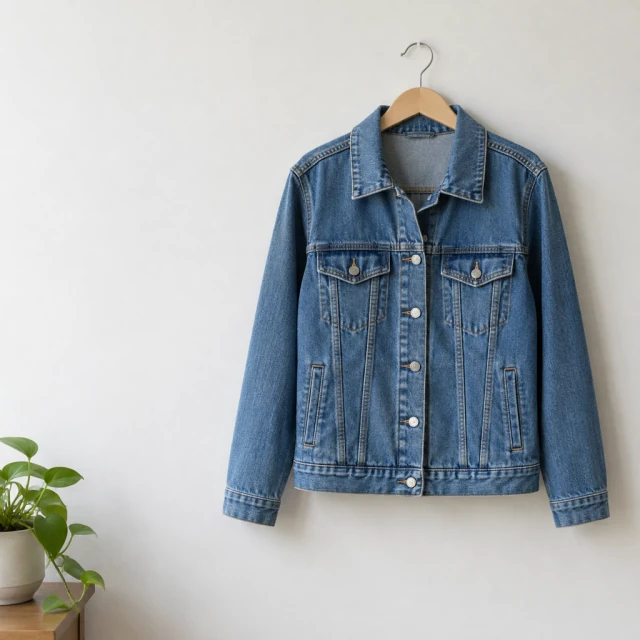
Denim jacket on a hanger against a plain wall with open space on the left
Photo
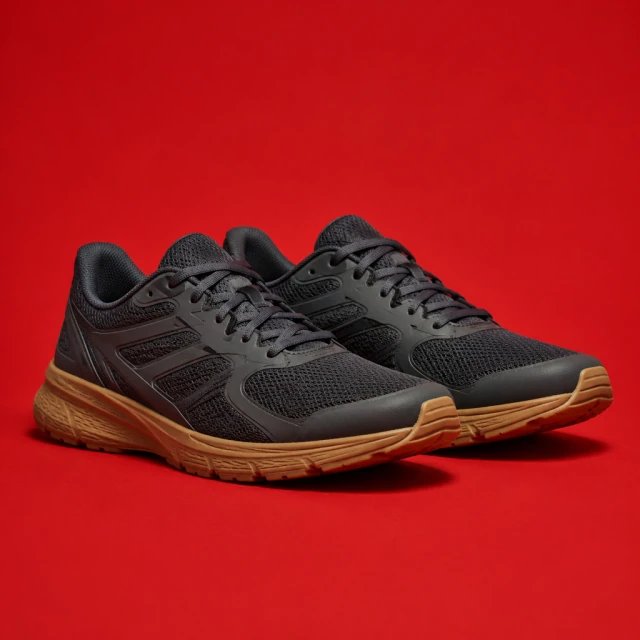
Dark mesh running shoes on a vivid red studio backdrop with clear open space.
Photo

Make your Black Friday product photos and clips before prices are locked. Leave clear space beside the product, then drop in the discount, code, and end date once they are set.

Plan your campaign

When to prepare your Black Friday ads

1

Six to eight weeks out

Choose the products you'll feature, clean up their photos, and try early versions in your regular ads to see which visuals people stop for.

2

Three to four weeks out

Make the final clips and banners in each size, then put them into your campaign calendar ahead of launch.

3

The week of

Schedule everything, keep spare versions for Cyber Monday, and swap out anything that isn't getting clicks.

How it works

Make your Black Friday product photo before prices are set

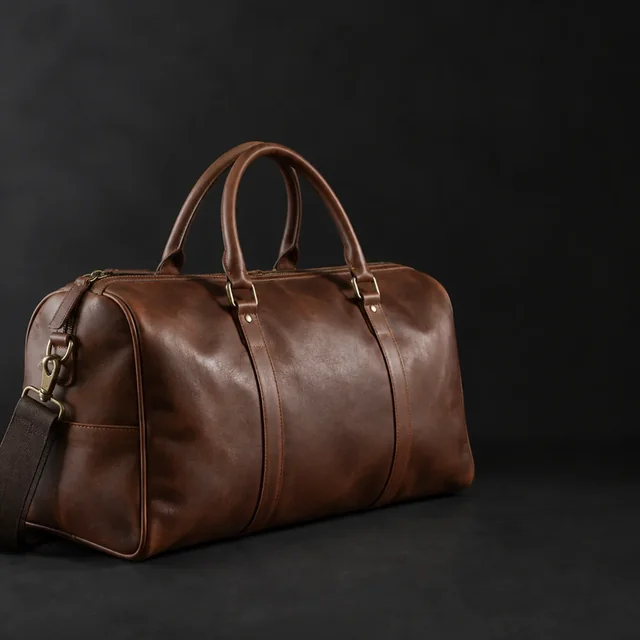
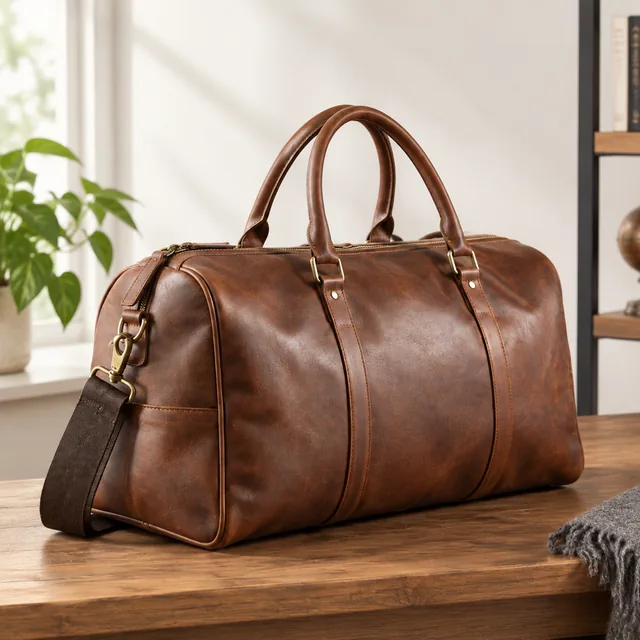
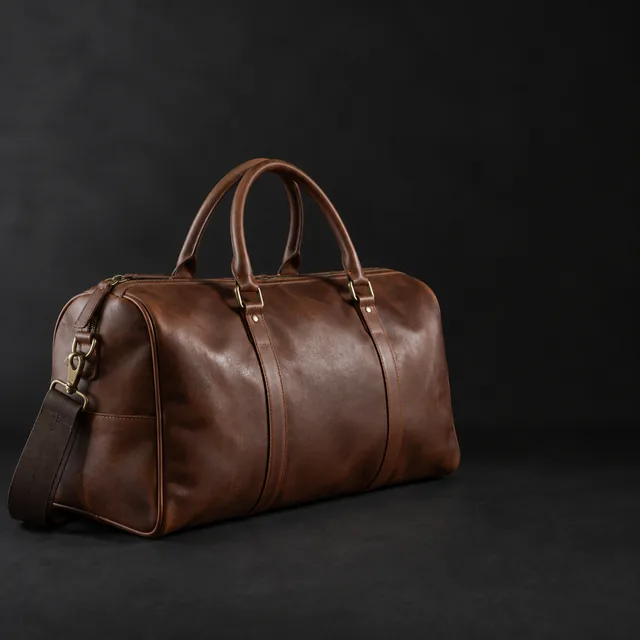
Leather duffel filling more of the frame on a dark backdrop, with handles and stitching visible.
Drop your product photo hereJPG, PNG or WebP · any clear photo works
Step 01

Choose the featured product

Upload a clear photo of the item or bundle you plan to promote, with its shape and details visible.

Put this leather duffel on a light wood surface in bright natural light, with empty space above it for the sale price.
Template Sale product photoSize Square
Cost24 credits
Step 02

Describe the campaign scene

Choose a surface, the light, and which side of the frame stays empty for the sale price.
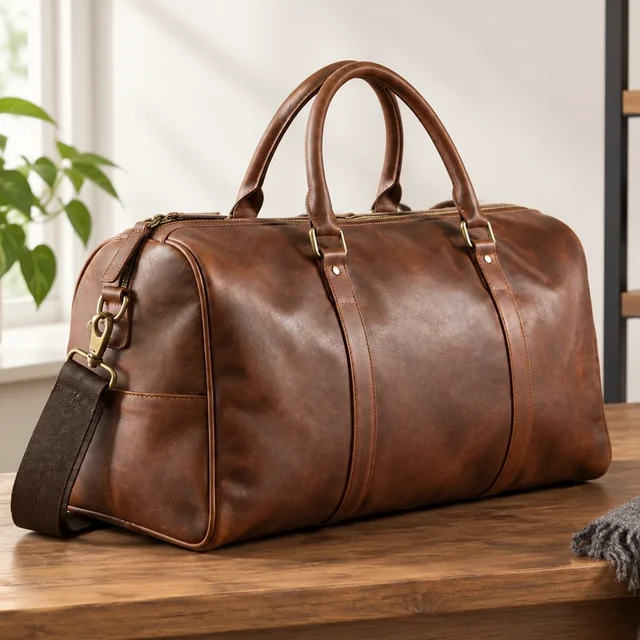
The same leather duffel larger in the frame on a light wood surface with brighter natural light.
Step 03

Download and add the deal

Type the price, code, and end date as text, so you can update them for Cyber Monday.

Choose a scene

Choose a product or gift bundle to feature

Pick the product or bundle you plan to discount; each scene leaves room for the price.
Where to use it

Use one Black Friday photo from teaser to sale day

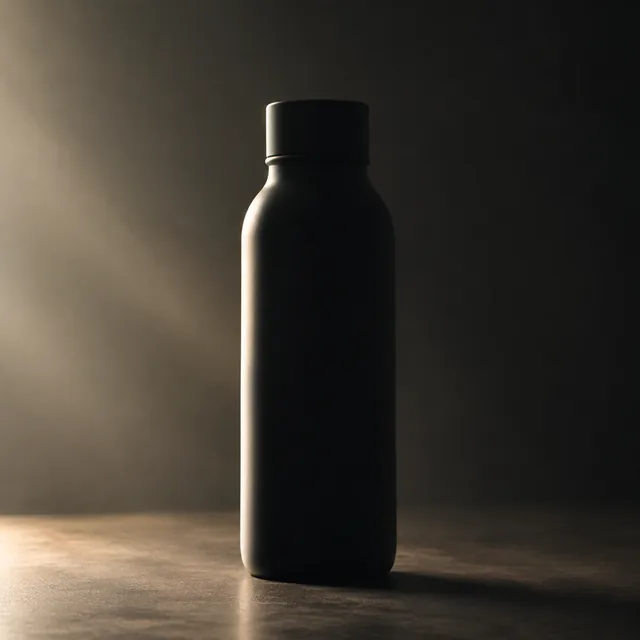
New bottle half lit, showing only its outline.

Tease the product before the sale starts

Tease the product before the sale, then add confirmed offer details on launch day.
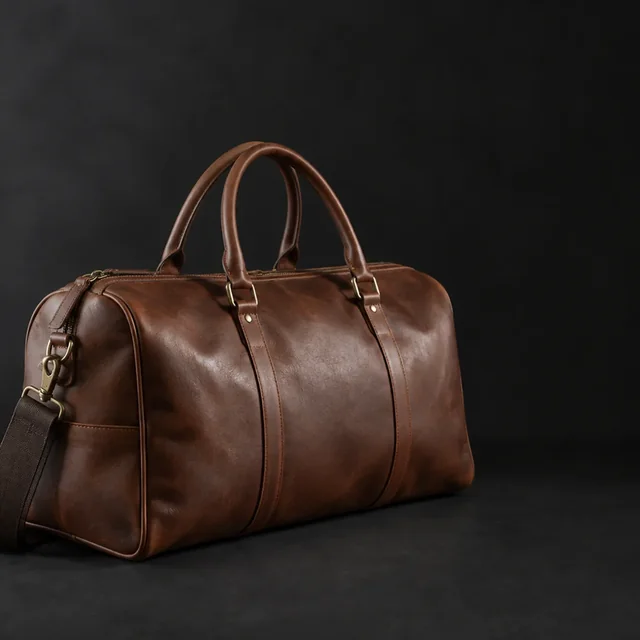
Leather duffel filling more of the frame on a dark backdrop, with handles and stitching visible.

Keep the ad and listing aligned

Shoppers who click a Black Friday ad should land on the product they just saw.

Start with a clear photo

Start with a clear product or bundle photo

✓
Gaming monitor on a dark desk with open space at the side.
Monitor shape and stand stay sharp
✕
Gaming monitor and stand softly blurred on a dark desk.
Screen and stand blur together
✓
Espresso machine with a red rim light in a dark kitchen.
Whole coffee machine stays in frame
✕
Espresso machine framed too tightly on a dark counter.
Machine edge is cropped from view
Your result

Square Black Friday photos for feeds and listings

Three-piece bath bundle on a bathroom counter.
Square featured-product photoSquare photo · 24 credits
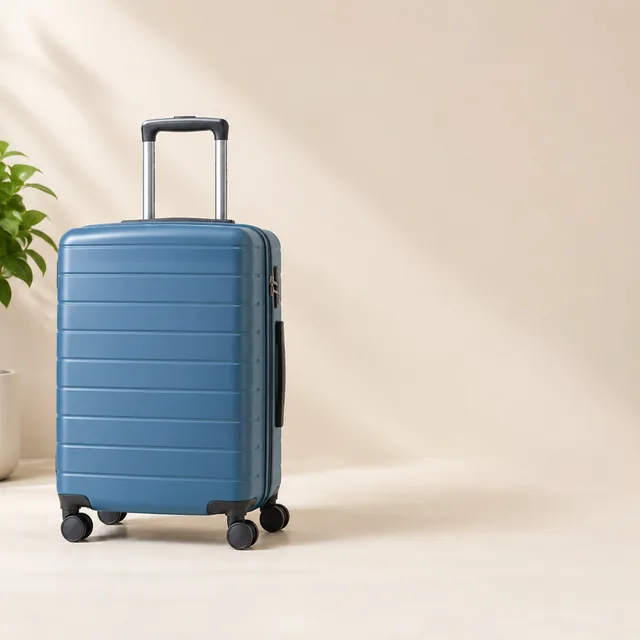
Hard-shell suitcase with open space on the right.
Square sale campaign photoSquare photo · 24 credits
After download

Add the discount and end date after download

Stacked ceramic bowls on a counter with open space above them.
DiscountEnd date

These details are added in your editor after download.

  • Keep the price, code, and end date as editable text layers instead of baking them into the photo.
  • Match the discount wording to your store banner so shoppers see one clear offer everywhere.
Templates

Black Friday templates

Choose the product and placements for your Black Friday creative set.

VideoSmall-batch hot sauce bottles lined up on a counter.

Creator Video Ad

Someone holding and showing your product

ElectronicsTikTokInstagram
Use this template →
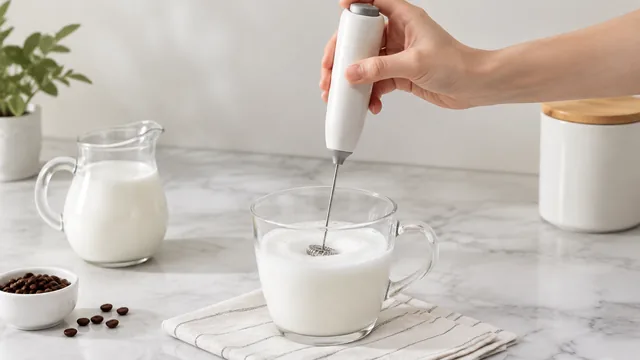
VideoHandheld milk frother foaming milk in a glass cup.

Product Demo

Show it working, start to finish

Home & LivingYouTube ShortsShopify
Use this template →
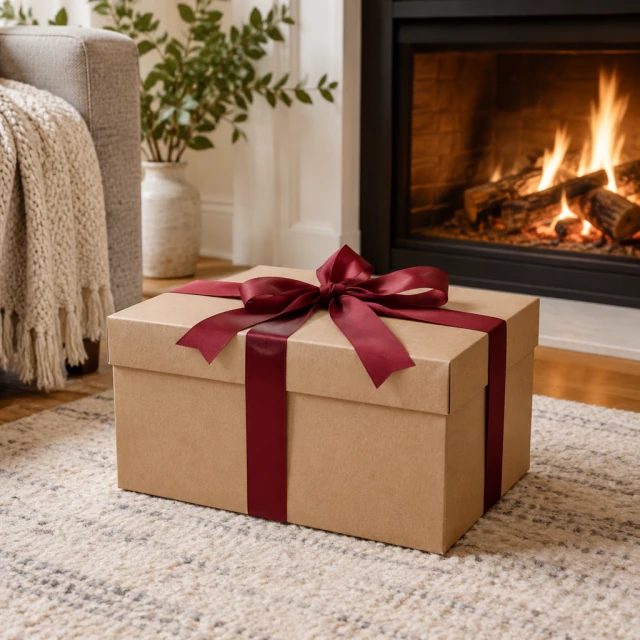
PhotoBlack gift boxes with ribbons stacked beside a laptop under dark lighting.

Sale Banner

Seasonal photo with room for your offer

Fashion & ClothingFacebookInstagram
Use this template →
Examples

More Black Friday examples

Dark, dramatic product shots with space for a deal badge, plus a brighter take for Cyber Monday.

Tools

Tools that fit

Video AdsShort ads for TikTok, Reels and Shorts
Social Ad PhotosImages for Facebook and Instagram ads
Unboxing VideosThe first-look moment, no filming
FAQ

Questions about Black Friday ad creatives

How early should I make my Black Friday ads?

Several weeks ahead gives you time to try a few versions and finish the visuals before your discounts are set.

Can you add a countdown timer to my video?

No. Add the countdown in CapCut or with your ad platform's own tools, where you control the exact end time.

Do I need a separate video for each platform?

Usually a 9:16 version covers TikTok, Reels and Stories, and a 1:1 version covers the feeds. Each one is its own generation, with its credit cost shown up front.

Which Black Friday details should stay editable until the offer is final?

Keep the price, discount, code, and end date editable so you can update the wording after download without rebuilding the product scene.

Keep reading

Guides and articles

Make Black Friday content today

Plan each Black Friday scene, then add the confirmed price, code, and date.