AIVideosUGC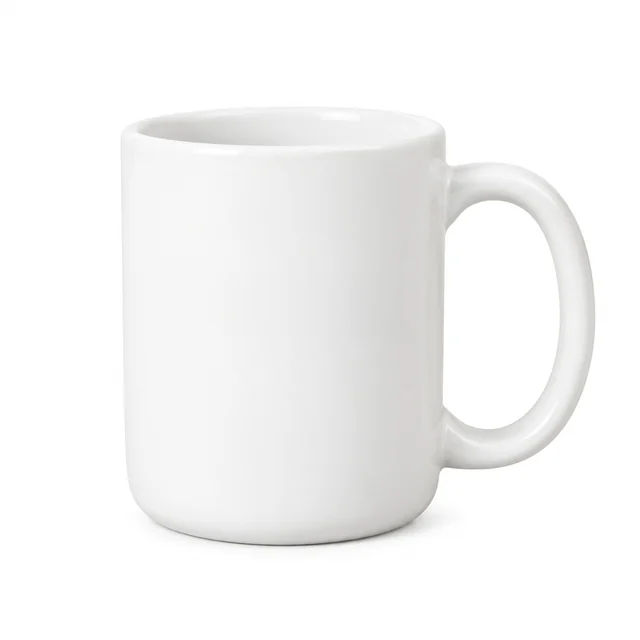
Drop your product photo hereJPG, PNG or WebP · any clear photo works
Step 01
Choose the product for the gallery
Start with a clear photo that shows the full item and its important parts.
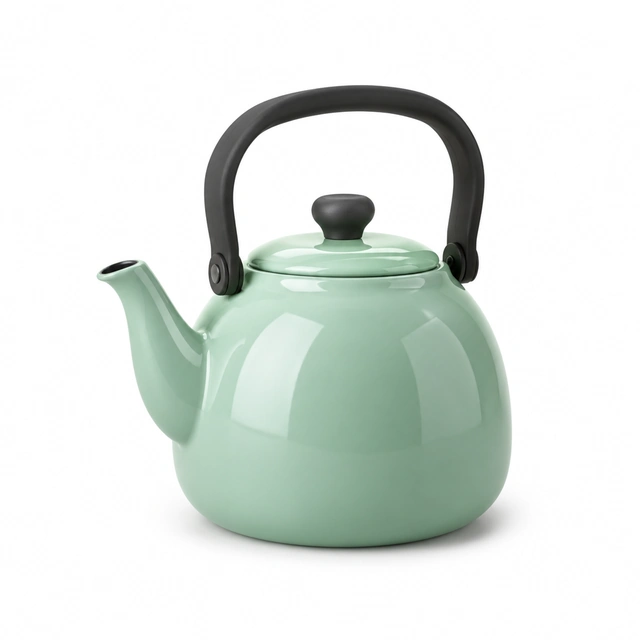
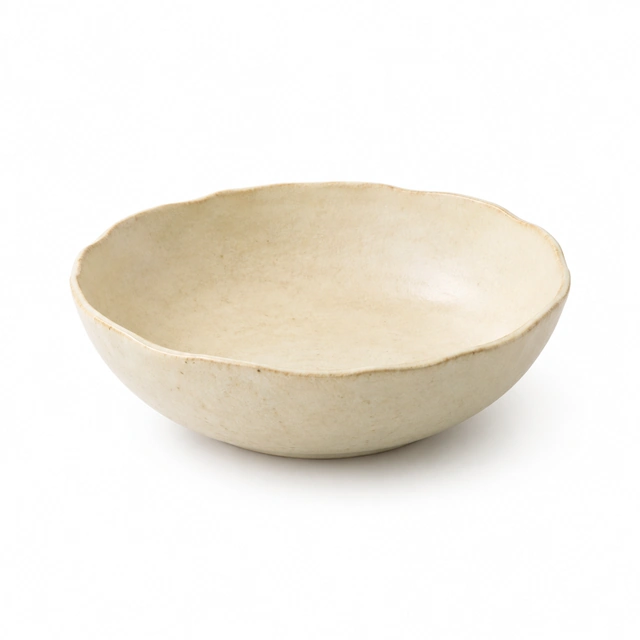
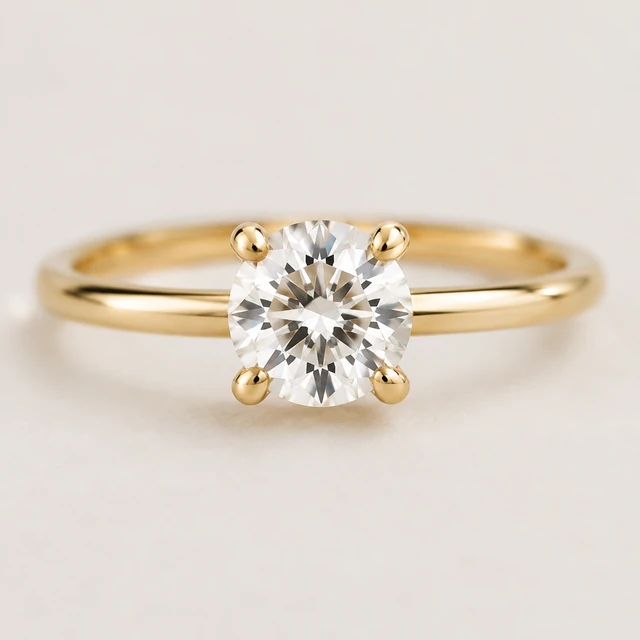
Plan an Amazon gallery around a square white-background main image, a square lifestyle secondary, and a square detail or size image.
Plans from $24.50 a month. You see the credit cost before every job, and if a job fails its credits go back to your balance.
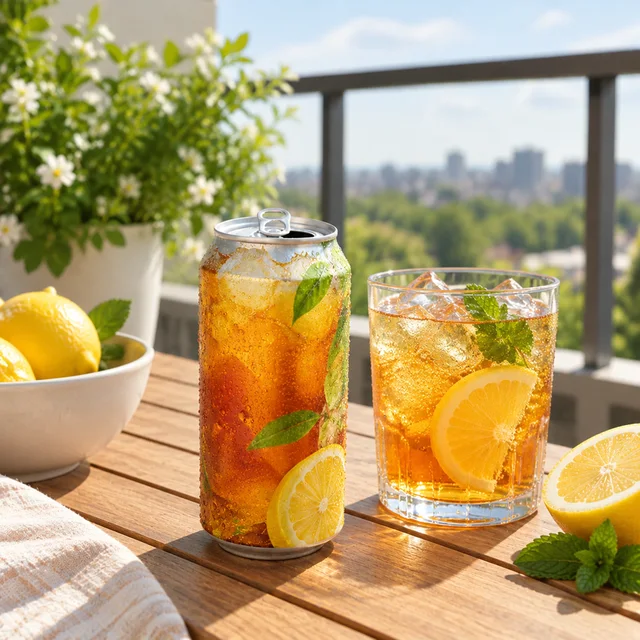
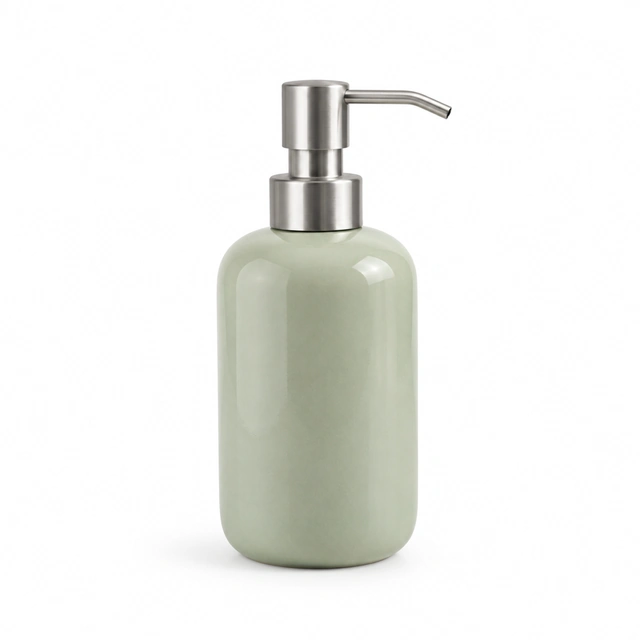
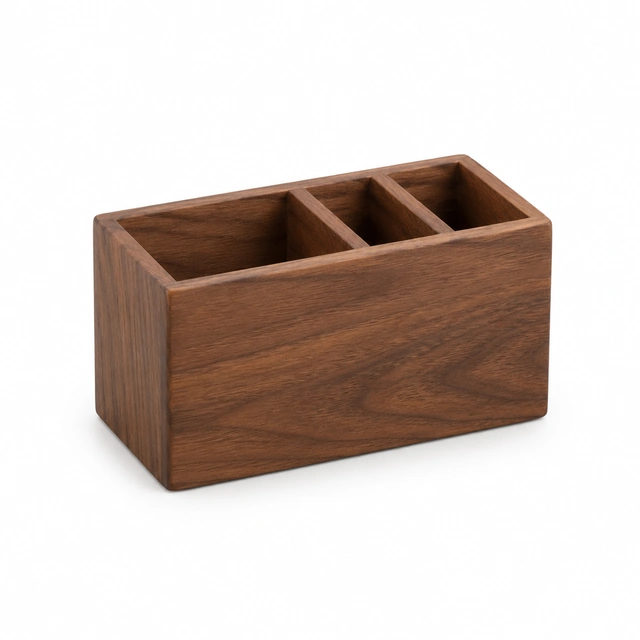
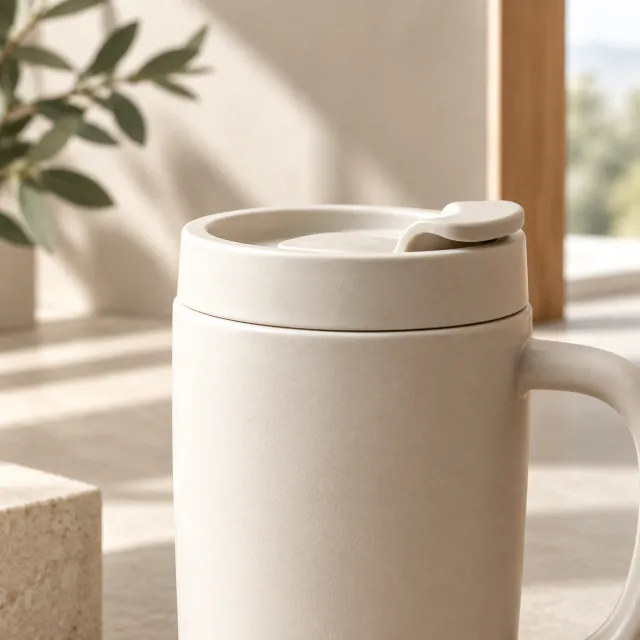
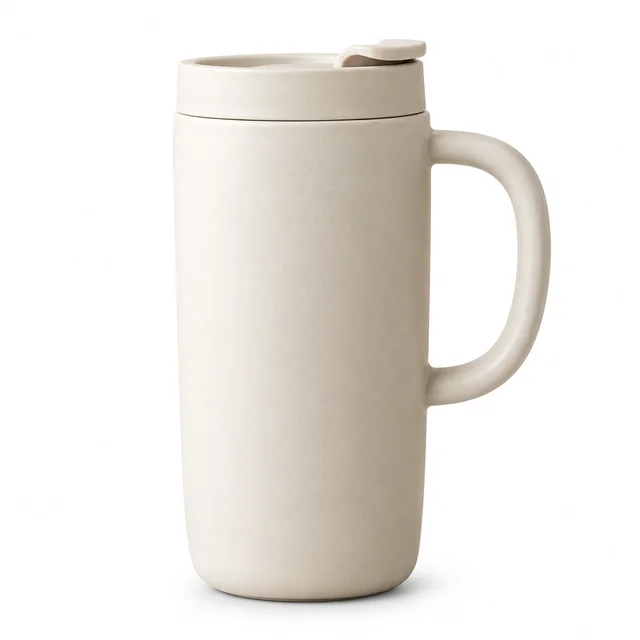
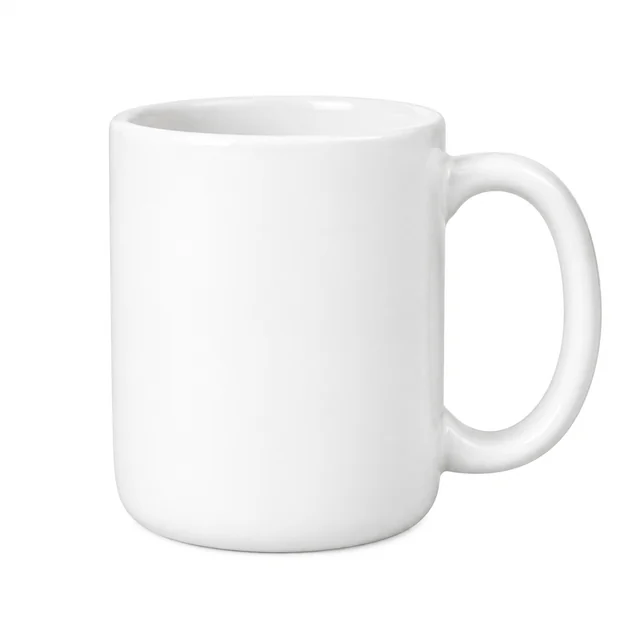
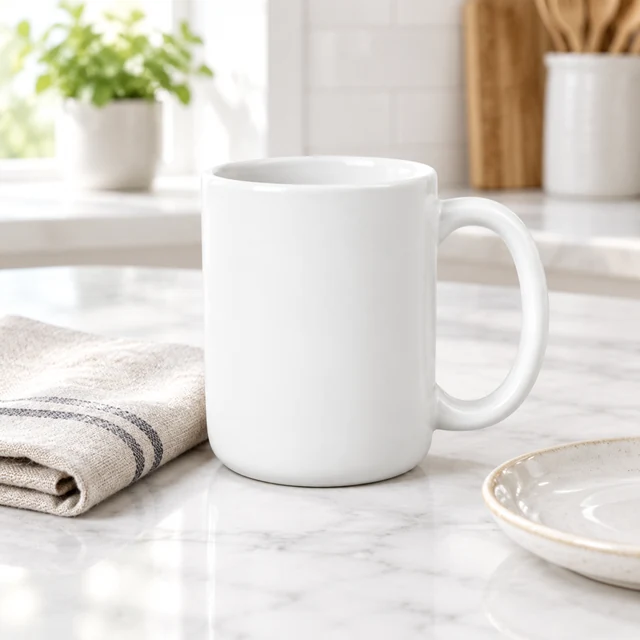
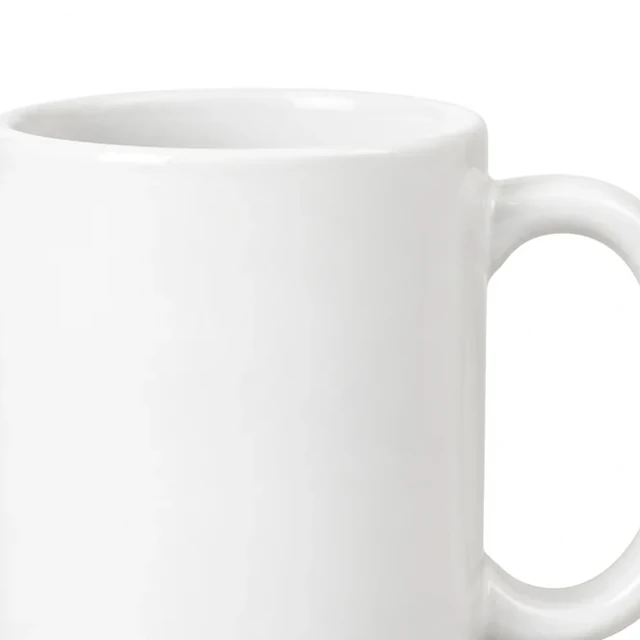
Use this mug in three square images: a white-background main image, a familiar setting, and a close rim detail.
Start with a clear photo that shows the full item and its important parts.
Choose a square main, lifestyle, or close-detail image for the product listing.
Enter current product details in your seller tools or image editor.
Pick the image role that answers a shopper’s next question.
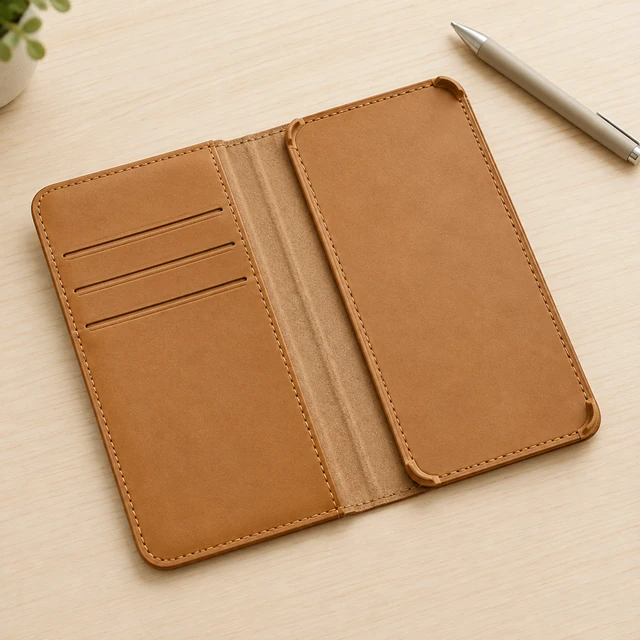
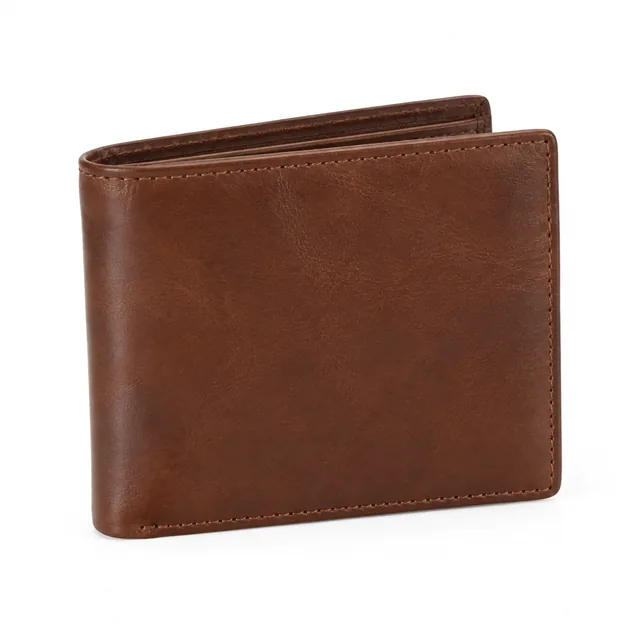
A square case photo keeps the tan leather pockets and stitching clear without depicting a handset.
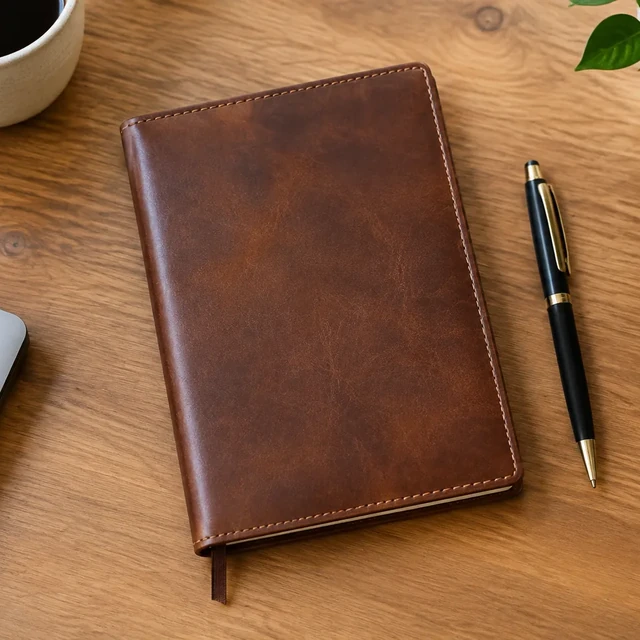
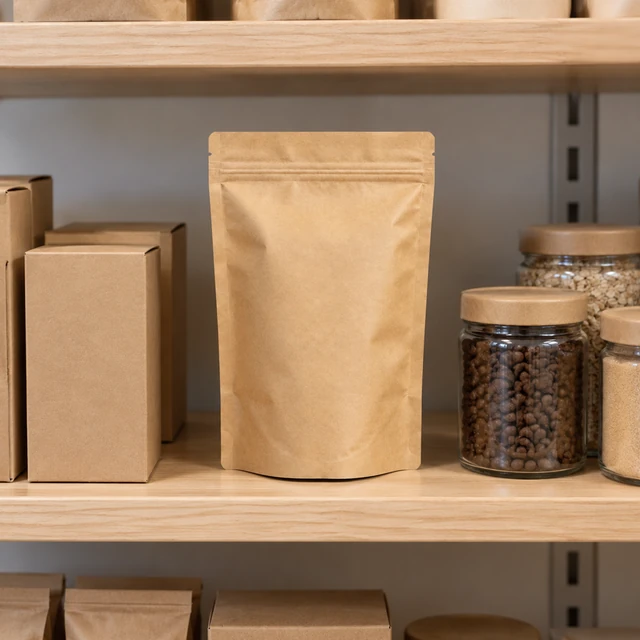
A supporting photo can show material, setting, or scale beside the listing information.
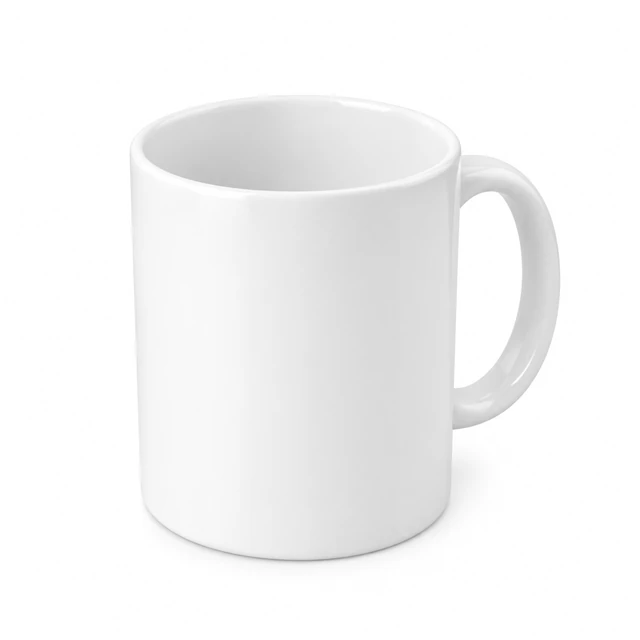
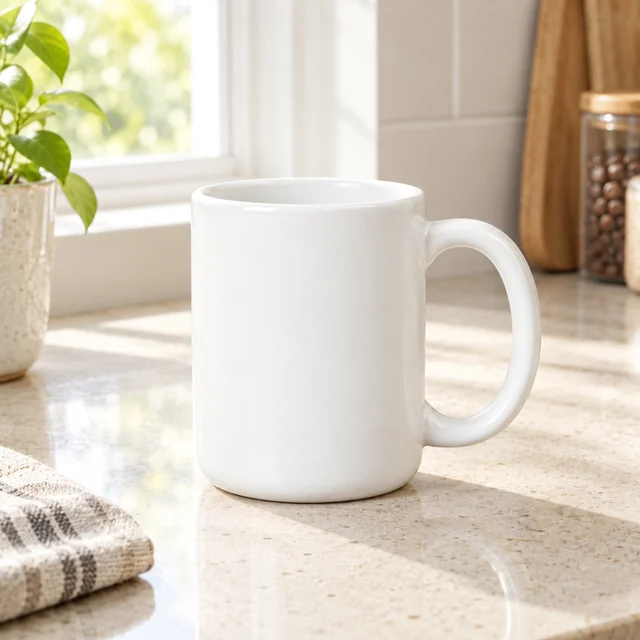
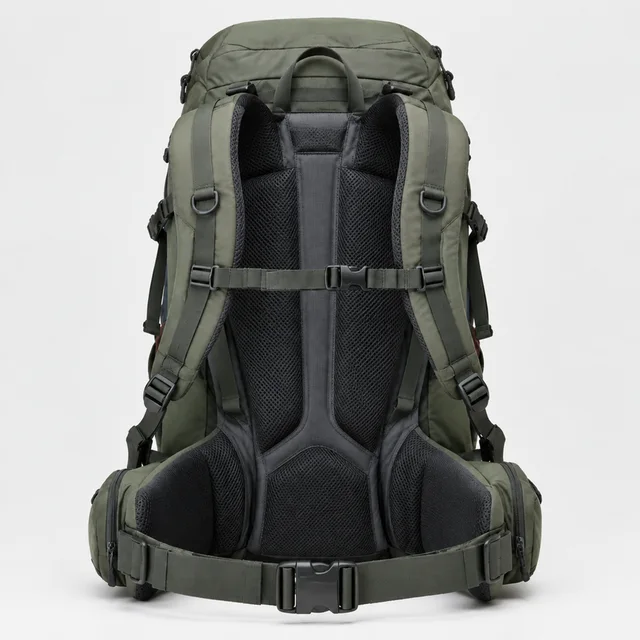
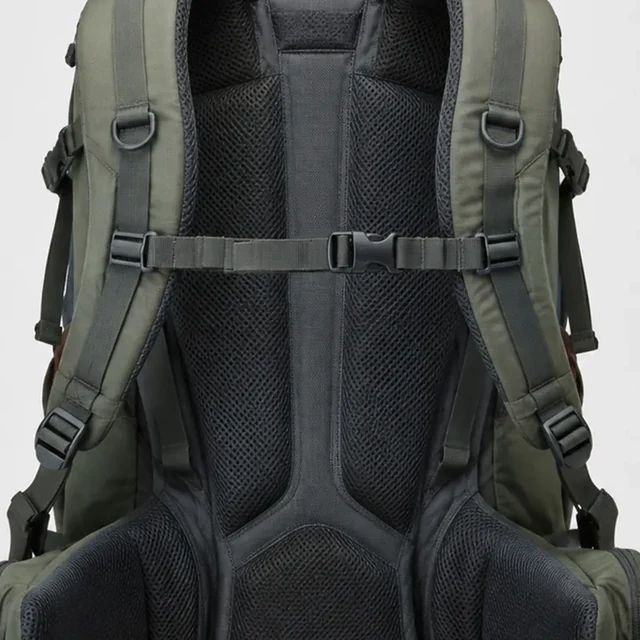
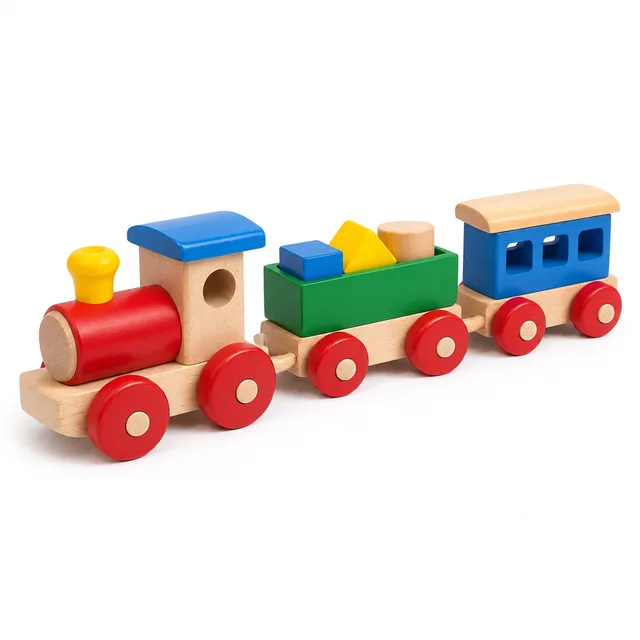
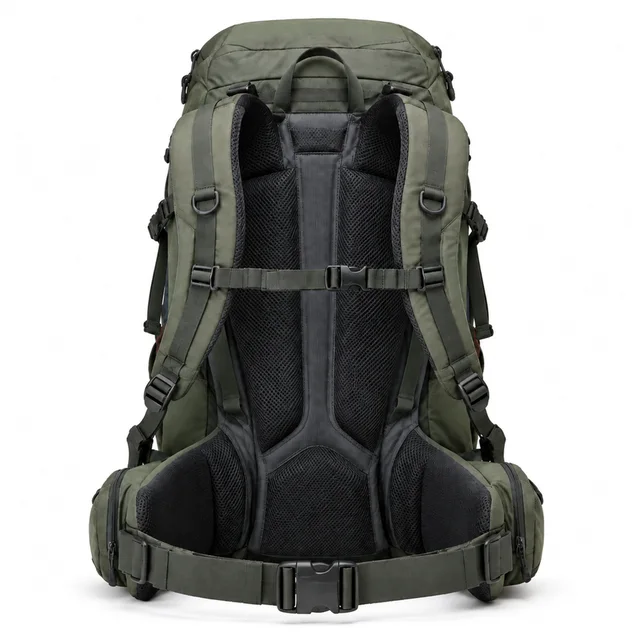
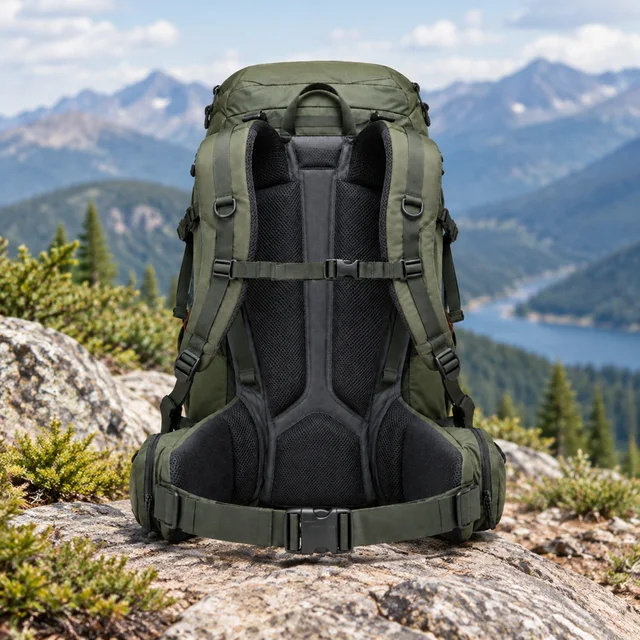
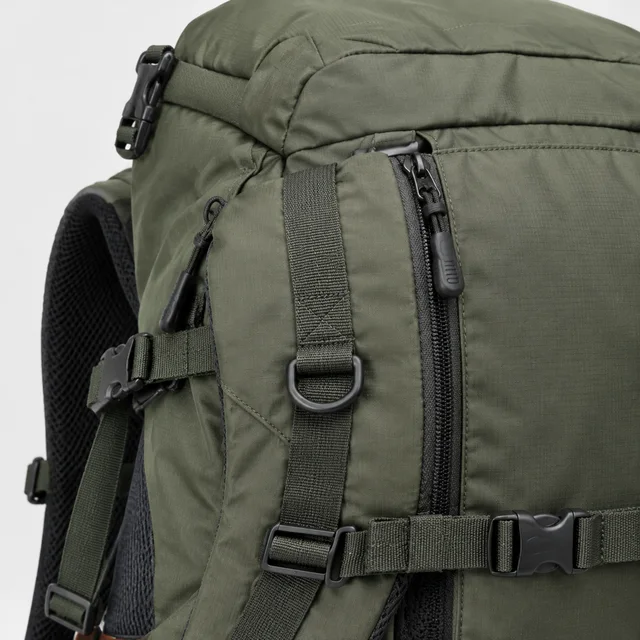
These details are added in your editor after download.
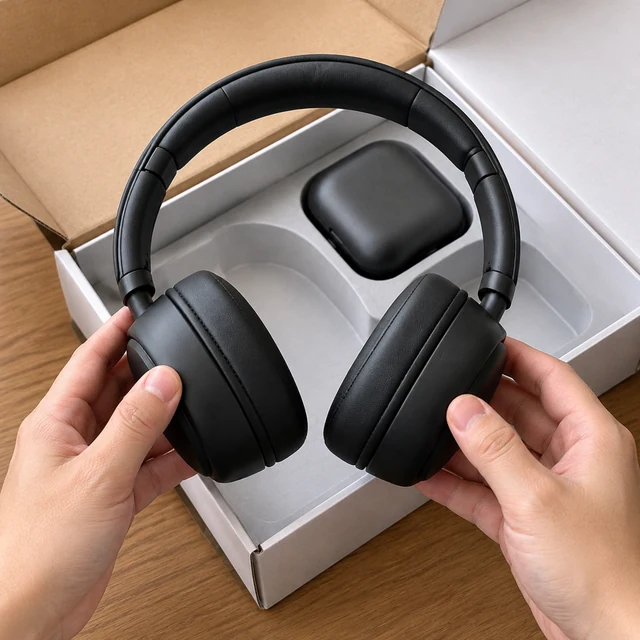
Choose a listing image purpose: a clean main view, a detail, or a product-use scene.
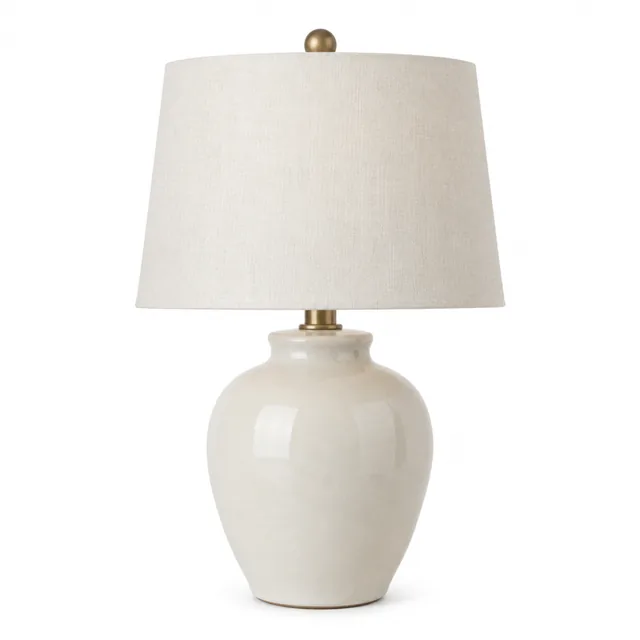

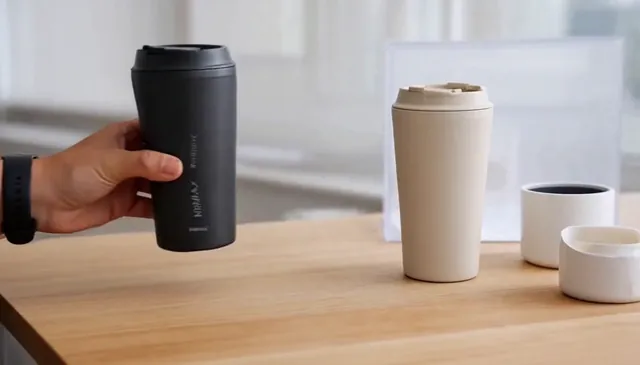
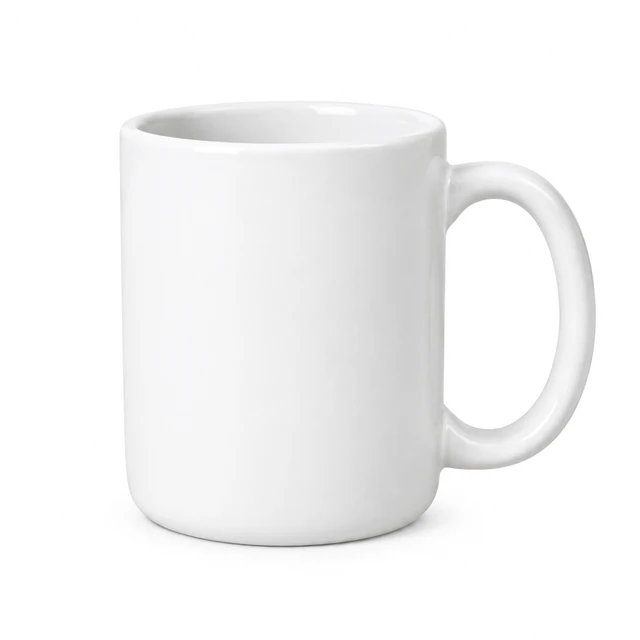
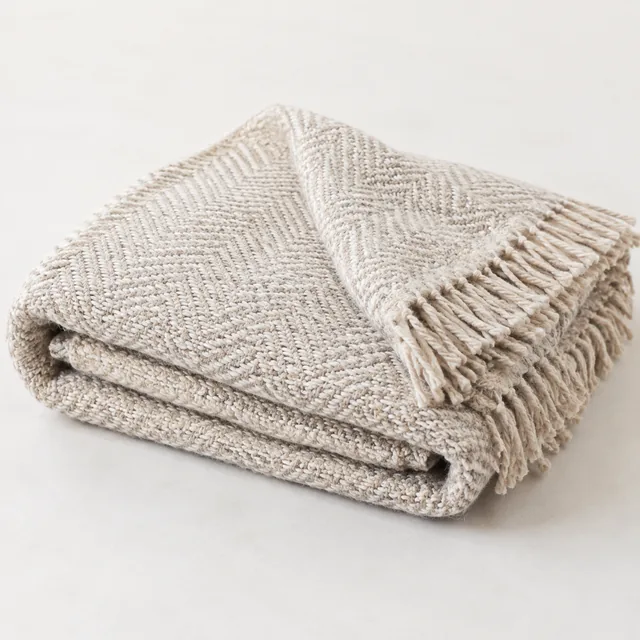
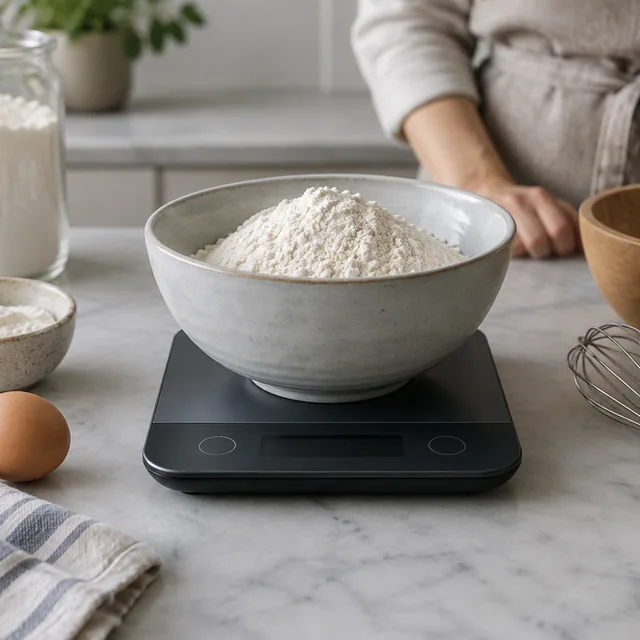

A white main image, then the size and use shots that answer shoppers' questions.
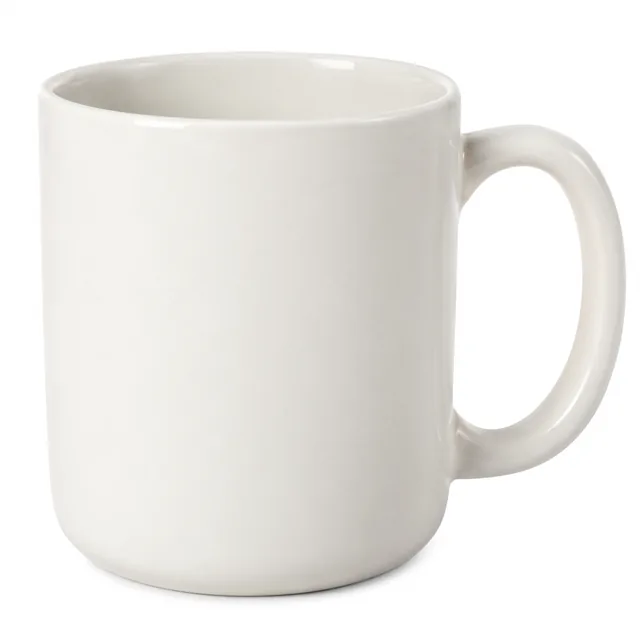
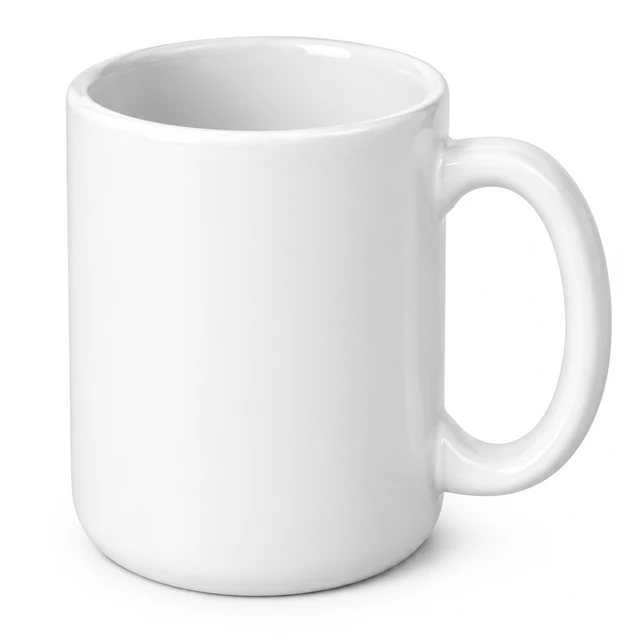
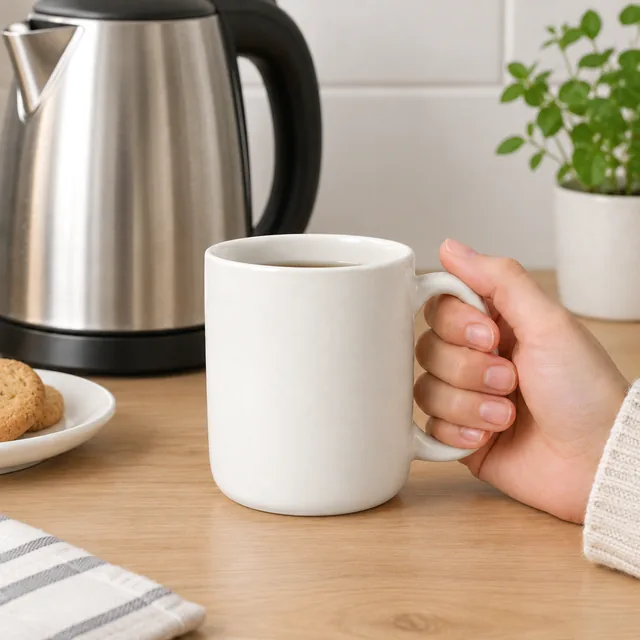
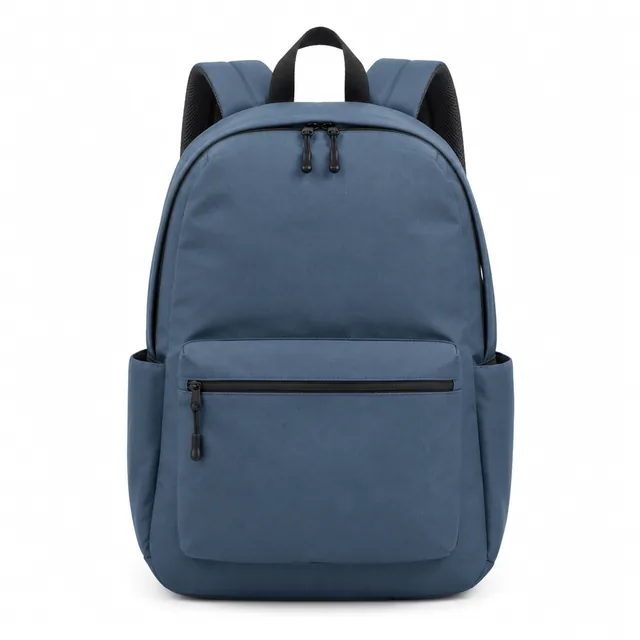
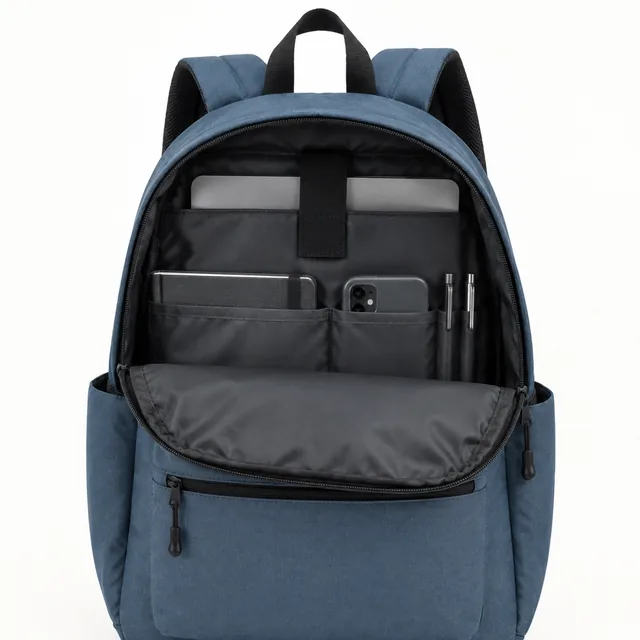
Use square images by default: a white-background main image, a lifestyle secondary, and a detail or size view. Keep the product recognizable across the gallery and check the current category requirements before uploading.
Add them yourself in Canva or a similar design app. Letters drawn by AI can come out wrong, and a separate text layer is easier to correct later.
Yes. Choose a 16:9 or 1:1 shape and 6, 10, 15 or 30 seconds of run time, then download the file and add it to your listing from your seller account.
Amazon requires a realistic product on pure white, with the item filling at least 85% of the frame. The image must be 500–10,000 pixels on the longest side; 1,000+ enables zoom.
Build a listing photo set around the main view, useful details, and product use.