 AIVIDEOSUGC
Image to Video: Animate a Product Photo with One Clear Action
Start from one product photo, describe one visible movement, and check the clip against the source image.
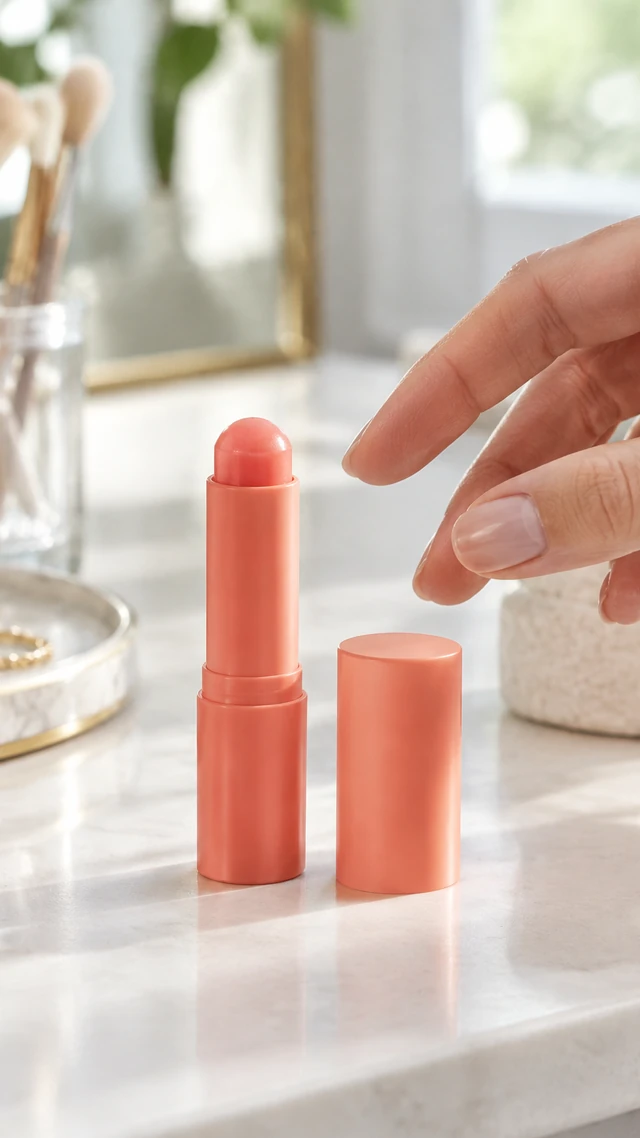
Image to Video starts with one still photo and a motion prompt. Use it when the product image is ready and you want a short movement, such as lifting a balm or turning the container. For several reference photos and a broader scene, use AI Video.
The source and short clip below are a homepage visual example of the same balm. The clip is silent, about 10 seconds, and is not presented as a result generated by this walkthrough.
One product photo → one motion prompt → visual sample
The prompt describes a single action. Check the product shape and label in the result; these homepage assets are an example pair, not a verified generation session.
Existing sample · silent · about 10 secondsAnimate one image with one action
The image sets the product look. The prompt sets the movement you want to see.
Open Image to Video
Go to [Image to Video](/app/create/image-to-video). If asked to sign in, return to the tool after signing in.
Upload one clear product photo
Use a sharp image where the product is large enough to see and its outline is unobstructed. For this example, use the balm image as the reference.
Describe one movement
Write one short action, such as “a hand picks up the balm and applies one swipe.” Add only the product detail that must stay visible; avoid combining several unrelated actions.
Choose the available format and review the estimate
Select the ratio, duration, and model offered in the current workspace. Read the displayed estimate before generation. If the example duration is not available, use a supported option and label the output with its actual duration.
Generate and compare with the photo
Start the job and wait for completion. Play the clip beside the source image. Check the package shape, cap, color, and that the motion follows the prompt.
Retry only after changing one thing
If the product deforms or the action is unclear, simplify the motion or use a sharper source photo. Change one input at a time so you can tell what improved.
Checklist
- Only one product photo is attached.
- The prompt describes one visible action.
- The selected duration and ratio match the controls on screen.
- The product remains recognizable through the clip.
- The sample’s duration and source are labeled separately from a new result.