 AIVIDEOSUGC
AI Image: Create a Lifestyle Product Photo from a Reference
Use a clear product photo with an image preset, then inspect the still image at full size before you keep it.
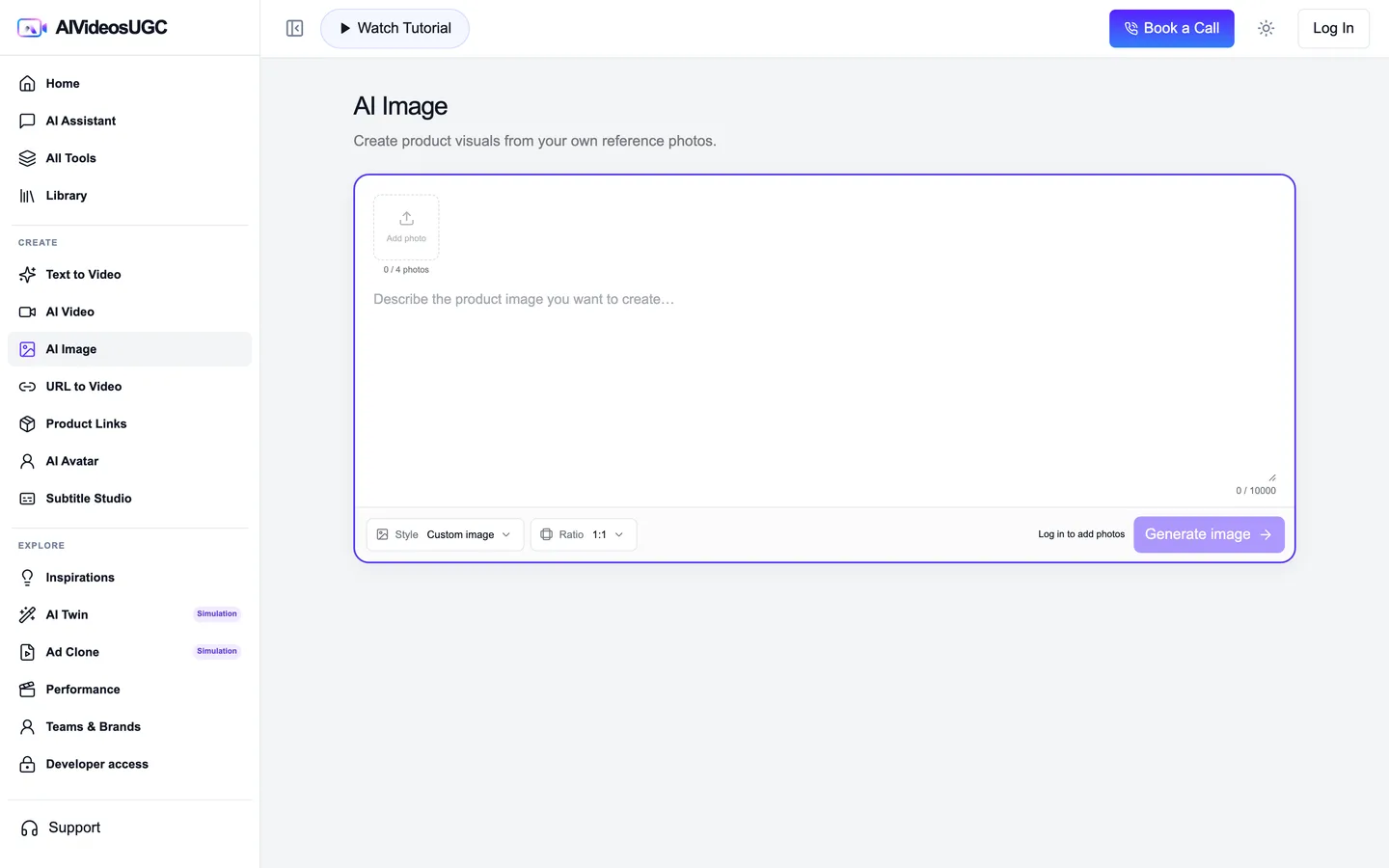
Choose AI Image when you need a still for a listing, shop page, or campaign. This walkthrough uses the Lifestyle Photo entry. If you need movement, use Image to Video; if you need a clean white main image, choose the matching image tool preset.
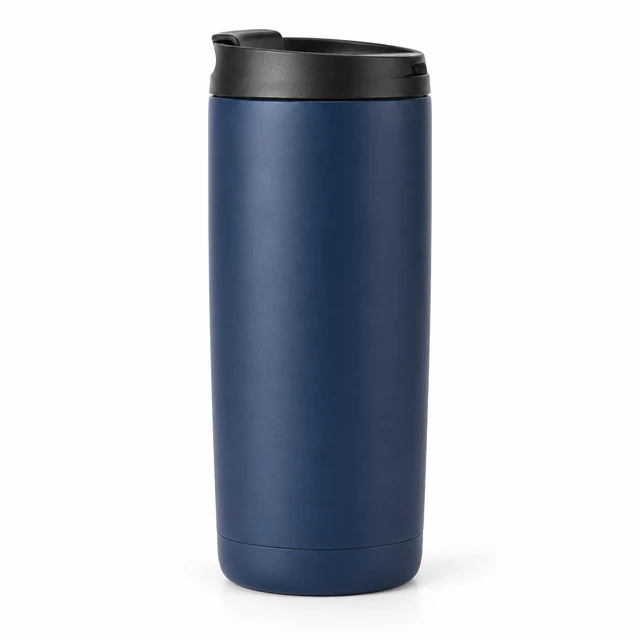
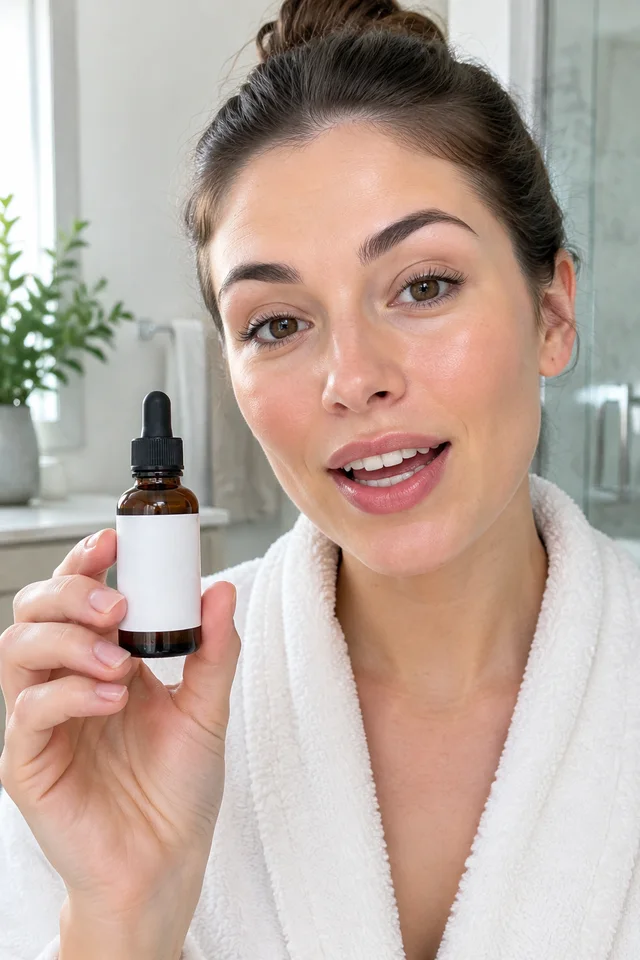
The two mug photos below are homepage examples of the same navy travel mug. They illustrate a source and a lifestyle use case, but they are not proof that both files came from the same generation session.
Reference photo → lifestyle image example
Compare the mug’s lid, body shape, and navy color. These are paired product examples, not a single recorded export.
Create and review a product still
Start with the product itself, then choose a scene and output shape.
Open the Lifestyle Photo entry
Go to [AI Image · Lifestyle Photo](/app/create/lifestyle-photos). If the workspace asks you to sign in, return to the tool after signing in.
Upload one clear product photo
Choose a sharp image where the whole product and label are visible. Avoid glare, blur, or another object covering the item.
Choose the scene and ratio
Use the Lifestyle Photo preset for an in-context image. If the preset is not selected automatically, choose it from the options shown. Pick the ratio that fits the placement.
Describe the scene and preserve details
Name the setting and the product details that must remain recognizable. For the mug, call out its matte navy body, lid shape, and handle; do not add features that are not in the source photo.
Generate and inspect at full size
Review the estimate and start generation. Compare the output with the source photo for shape, color, lid, and label. If any key detail has changed, revise one part of the prompt before making another version.
Checklist
- The reference shows the entire product clearly.
- The selected preset and ratio fit the intended use.
- The output keeps the same product silhouette, color, and visible label.
- The final file was checked at full size, not only in a thumbnail.