 AIVIDEOSUGC
Subtitle Studio: Add and Check Captions on a Finished Video
Choose a completed video, generate subtitles, and review the new version alongside the original before you download it.
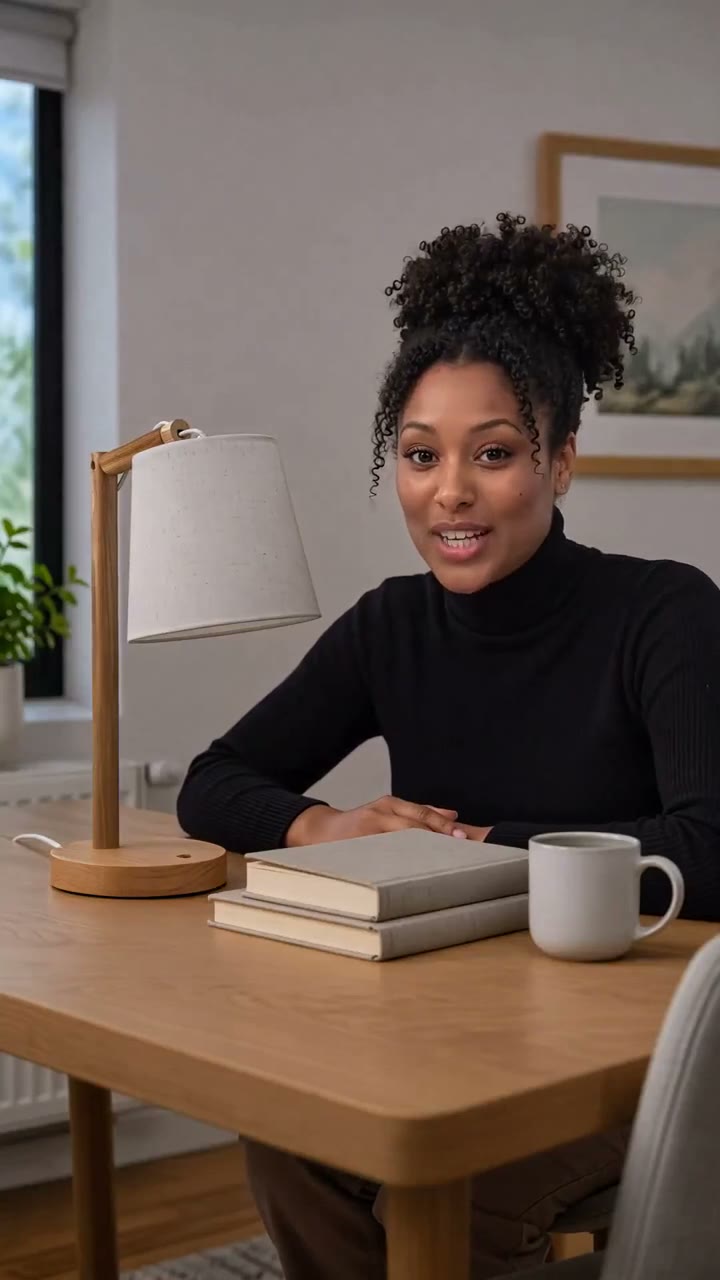
Subtitle Studio works on a completed video. Select a clean render with clear speech, choose **Generate subtitles**, and review the new version. It does not edit the shots. If the video itself needs a new scene, return to AI Video or AI Avatar first.
The pair below uses the same 30-second study-lamp clip and original audio. The captioned file is a paired caption example, not an export verified from Subtitle Studio. The sample lets you see the visual difference; use the workspace steps to generate your own version.
Original → captioned example
Both files show the same vertical clip and audio. Play either side; starting one pauses the other and keeps the comparison near the same time.
Subtitle a finished video and check the new version
Start with a clean source render. Captioned examples and product-copy overlays are separate operations.
Open Subtitle Studio
Go to [Subtitle Studio](/app/create/subtitles). The list contains completed videos that are available for subtitle operations.
Choose a clean source video
Select the completed render whose speech you want to caption. Before generating, play it and confirm the speech is clear and the current version has no baked-in subtitles.
Choose Generate subtitles and set the look
Select **Generate subtitles**, then choose from the style, size, position, color, and backdrop options currently shown. Check the preview on a frame with a face and a product label.
Generate a new version
Start the subtitle operation and wait for the new version to appear. The operation uses the selected render, so start from the clean original rather than a version that already has captions.
Compare, listen, and download
Compare the new version with **Original** at the same point. Check the opening, middle, and end for missing words, timing, and safe placement. Listen for product names and numbers, then use the download control for the version you approved.
Checklist
- The selected source is completed, has clear speech, and has no burned-in subtitles.
- The new version is generated from the clean source.
- Opening, middle, and ending captions match the speech and stay inside the safe area.
- The two comparison videos are the same clip; only the caption layer differs.
- The downloaded file opens and plays with the expected audio and captions.