 AIVIDEOSUGC
AI Avatar: Choose a Presenter for Your Product Video
Preview the available presenters and voices, then add your product and script to make a presenter-led video.
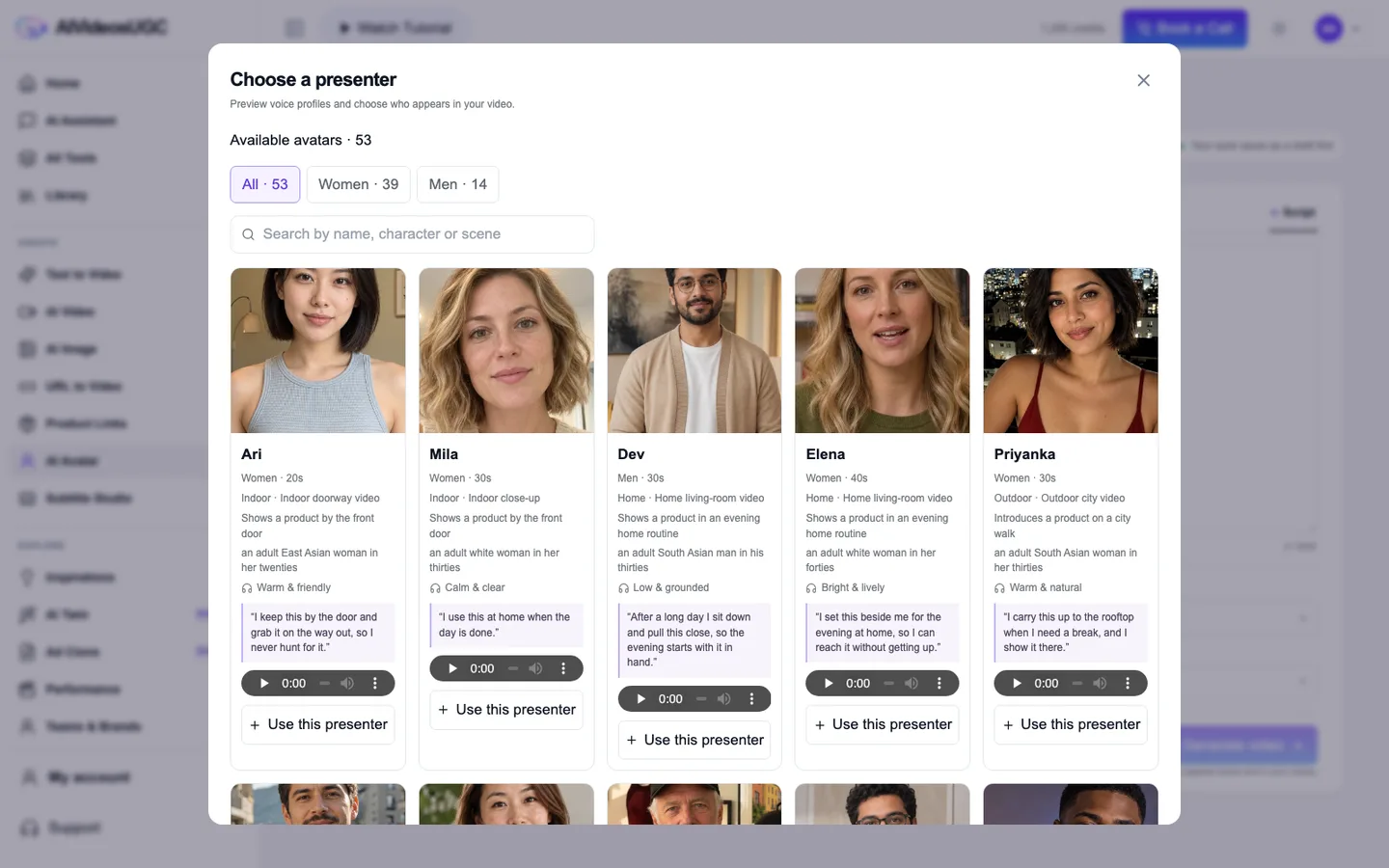
AI Avatar is for a product video where a presenter speaks on camera. Choose a presenter and preview the sample voice before you build the clip. For a clip that should move without a presenter, use Image to Video; for a broader scene built from product references, use AI Video.
The picker screenshot documents the available voice-preview controls. The Ari-and-tote clip below is a visual example only; its audio and generation history have not been matched to this walkthrough.
Presenter choice → product and script → visual example
The sample clip shows Ari with a tote. It is not used to prove the chosen voice, spoken script, or a specific generation run.
Ari + tote visual example · audio not verifiedChoose a presenter and build the video
Preview the voice first. Then check that the product, script, and final clip all belong to the same brief.
Open AI Avatar
Go to [AI Avatar](/app/create/ai-actors). If you are asked to sign in, return to the presenter chooser afterward.
Preview and choose a presenter
Play the sample on a presenter card and check the displayed language or voice information. Choose **Use this presenter** only after the sample is suitable; card availability can change.
Add the product and script
Attach the product photo or photos requested by the composer, then enter a short script that describes only verifiable product details. Keep the speaker and product in the same example.
Review the voice and estimate
Check the selected presenter, spoken language, product references, duration, and estimate shown by the workspace. If the chosen presenter or voice is no longer available, select a current option and update your script.
Generate and listen to the result
Start the job and wait for completion. Play the clip with sound and check that the selected presenter, spoken words, lip movement, and product all match your choices.
Checklist
- The selected presenter is visibly selected in the workspace.
- You listened to that presenter’s sample before using it.
- The script matches the product photo and contains no guessed claims.
- The finished clip was played with sound and checked against the script.