 AIVIDEOSUGC
Text to Video: Build an Editable Storyboard from a Short Brief
Turn a short product idea into an editable storyboard. Review the scenes and product details before you decide whether to generate a video.
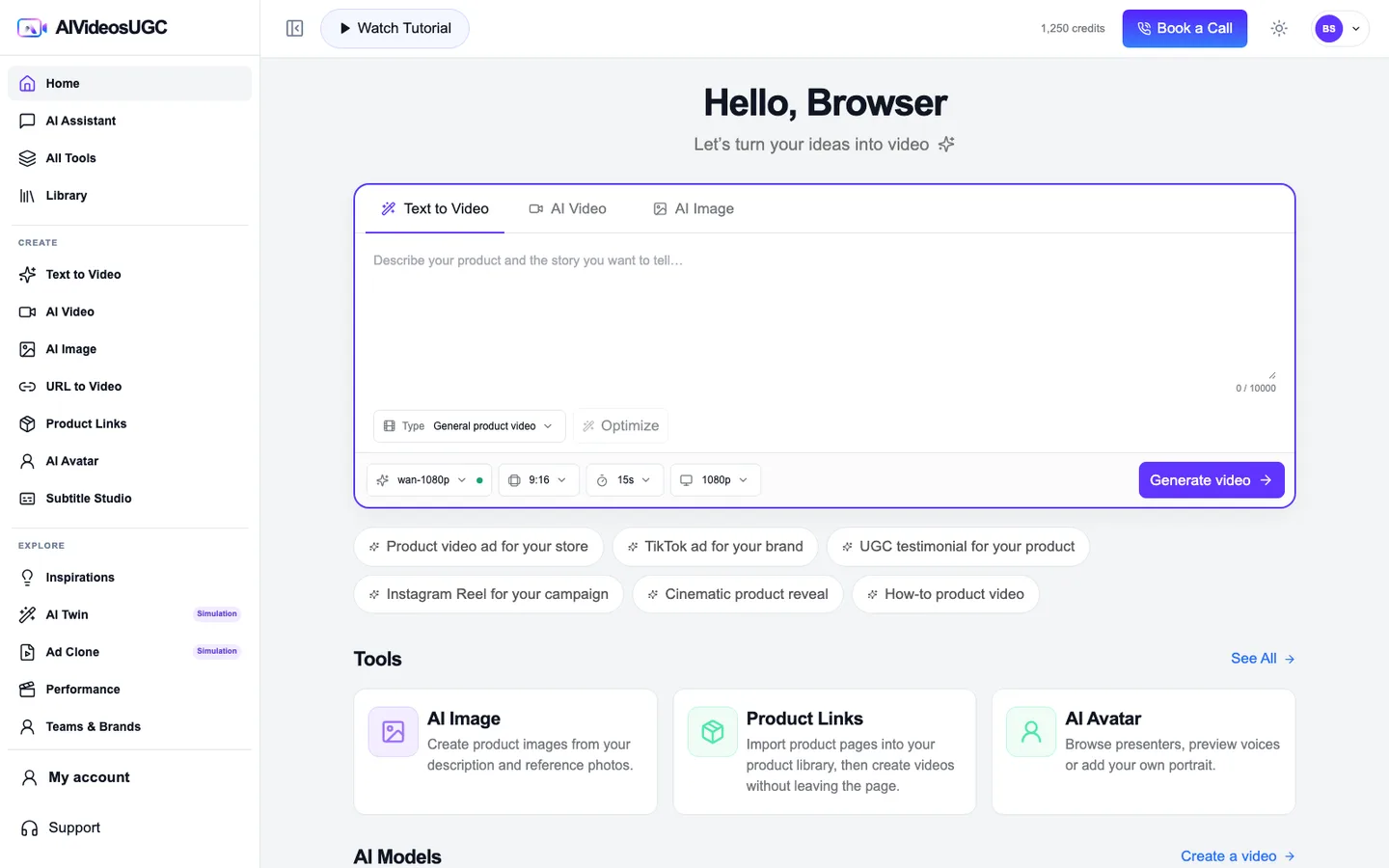
Text to Video starts with a short written brief and gives you a storyboard to review. Use it when you have an idea but do not need to import a product page or build from several reference photos. If you already have product photos, compare it with AI Video; if you are starting from a public listing, use URL to Video.
The example below is an existing moisturizer clip, about 10 seconds long. It is a silent visual sample, not a video generated by the steps on this page and not evidence of a voiceover.
Example brief → visual reference
Example brief for a pale-blue moisturizer jar. The clip is shown only as a visual reference; it has no demonstrated speech or sound.
Example direction: keep the pale-blue jar in view and show its label clearly.
What to check in the storyboard
The outline below is an illustrative review guide for the example brief, not a captured Optimize response. Actual scene wording and available controls can vary in the workspace.
Keep the product and action consistent
- 01Start with the briefA pale-blue moisturizer jar sits on a bathroom counter; a creator picks it up for a clear label close-up.
- 02Review the scene orderCountertop view → pick up the jar → close-up of the label.Illustrative outline; use the scenes returned by your workspace.
- 03Adopt or editChoose Use this prompt only after the product, action, and any spoken lines match your brief. Remove anything you cannot verify.
From one sentence to a storyboard
Start with the brief, inspect what Optimize suggests, then review the estimate before generation.
Open Text to Video
Go straight to [Text to Video](/app/create/text-to-video). If the workspace asks you to sign in, return to this tool after signing in.
Write one specific sentence
Name the product, the setting, and one visible action. For this example: “Show a pale-blue moisturizer jar on a bathroom counter, then hold it up for a clear label close-up.” Avoid adding product claims you cannot verify.
Optimize and inspect the storyboard
Choose **Optimize** and read the returned scenes in order. Check that the product, action, setting, and any spoken lines match your brief. If Optimize is unavailable, keep the original sentence and refine it yourself.
Use the draft, then edit it
Choose **Use this prompt** when the proposed storyboard is useful. Edit any scene, product detail, or line that is inaccurate before you continue.
Review settings and the estimate
Check the selected model, aspect ratio, duration, and resolution shown by the workspace. Read the displayed estimate before starting. If the estimate does not load, save the draft if that option is available and stop before generation.
Generate and review the result
Start the job from the workspace and wait for its completed state. Play the result and compare the jar color, lid, label, and requested action with your brief. Treat the example clip above as a separate visual reference.
Checklist
- The brief names one product and one visible action.
- Every storyboard scene matches the brief and avoids invented claims.
- Model, format, and estimate are visible before generation.
- The finished clip shows the same product details requested.